
Complete Calculator Manuals & Guides
Welcome to our single-page documentation center. Learning to use a new calculator can feel confusing at first. This guide is written in very simple, easy-to-understand English to help you master every device perfectly. Use the left menu to jump straight down to your specific calculator guide, or start with our graphing basics.
1. Graphing Calculator Online
Overview, What It Is, & Who Should Use It
A Graphing Calculator Online is a smart visual tool that instantly turns math numbers into colorful pictures. When you type an equation like your textbook shows, this calculator draws a line for it on a massive grid. You never need to use a physical pencil or graph paper to guess the answer. It is absolutely perfect for middle school and high school students taking basic algebra or geometry. If your math teacher ever asks you to find the slope of a line or plot map coordinates, this is the exact tool you should use.
Key Features, Layout, Screen, & Important Buttons
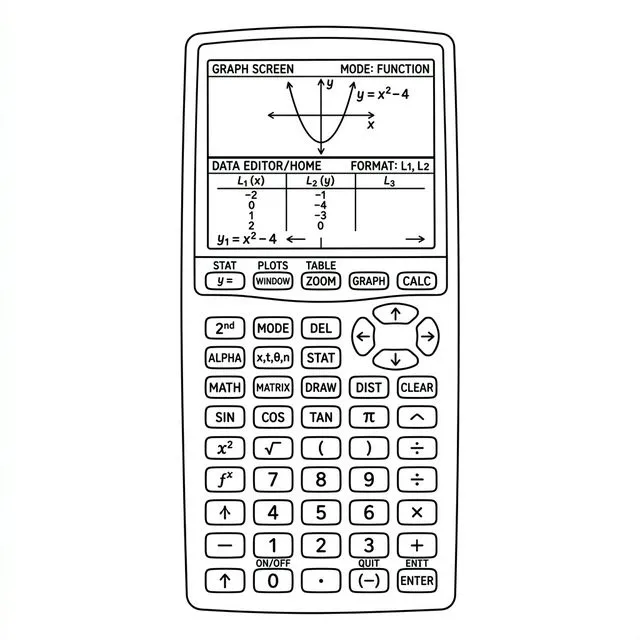
The layout is very clean and simple. The computer screen is split right down the middle. On the left side, there is an organized stack of empty white boxes where you type equations. On the right side is a giant, colorful grid where your lines automatically appear. You do not need confusing plastic calculator buttons; you simply use your normal phone or computer keyboard. The most important keys are the plus (+), minus (-), multiply (*), and the letters “x” and “y”.
Basic Navigation, How to Use It, Beginner Guide, & Entering Equations
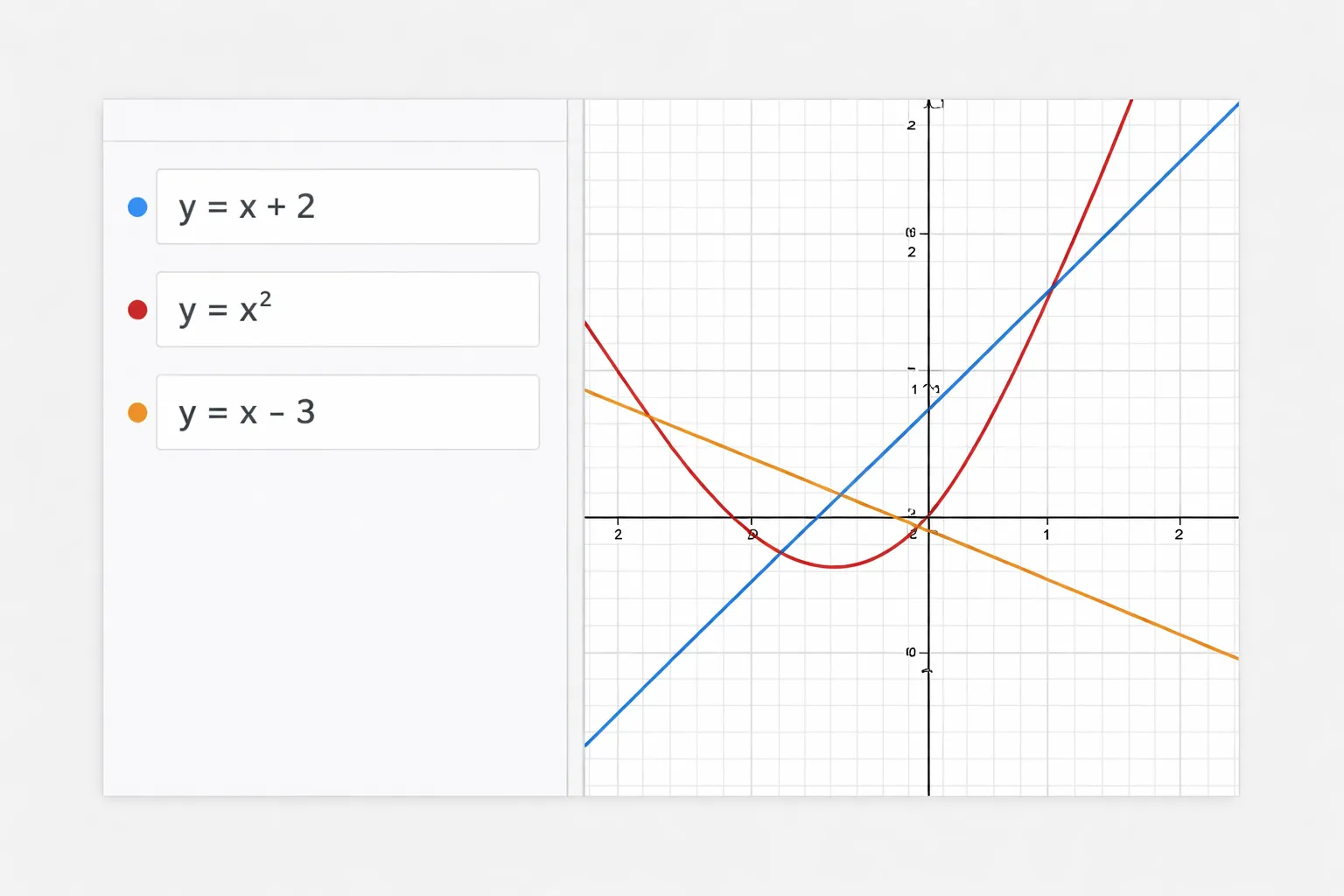
Navigation is incredibly fast. First, click inside the top empty white box on the left. Type your equation exactly as it looks in your homework, like `y = x + 2`. Look to the right, and the grid automatically draws a slanted math line. To graph a curved bucket shape (called a parabola), type `y = x^2`. This graphing calculator lets you add multiple lines simultaneously. Simply click the next empty box block below it and type a second equation to see where two different lines perfectly cross each other.
Changing Modes, Using Menus, Trigonometry & Statistics
Clicking the small wrench icon opens the options menu. This menu allows you to zoom exactly where you need or change between “Radians” and “Degrees”. When doing trigonometry, type `y = sin(x)`, and you will instantly draw beautiful, endless ocean waves completely across the screen. For statistics homework, the menu allows you to add a blank data table. You can type your survey numbers into the table, and it will plot the scattering points perfectly for you.
Common Calculations, Real Examples, Homework, Exam, & Classroom Use
A great real-world example is tracking saved money. If you decide to save 10 dollars every week, simply type `y = 10x`. The line shoots high up the grid, showing you exactly how much money you will have at week 5 without doing manual paper math. This online grapher is your absolute best friend for daily homework. However, always ask your teacher first if you are allowed to use browser-based internet tools during official computer exams.
Tips for Beginners, Common Mistakes, Troubleshooting, & FAQs
An amazing tip is to always use lowercase letters (like x and y). Using capital letters can sometimes confuse the machine. The most common mistake new beginners make is forgetting to use normal parentheses around fractions, like typing `1/2x` instead of the correct `(1/2)x`. If your screen suddenly goes completely blank, do not panic! Your line is simply drawn far beyond the active screen. Keep clicking the “Zoom Out” minus button until your line safely returns to view.
1. Are there hidden fees or subscriptions to draw graphs?
No, this online tool is completely free, requires zero app downloads, and automatically runs right inside your internet browser.
2. How do I print my graph for class?
Usually, there is a print icon or a share button. If not, you can simply take a fast screenshot on your computer or phone to print the image directly.
3. Why did my line disappear completely off the screen?
Your equation might be making a huge number. Click the zoom-out minus button a few times to see a wider view of the math grid.
4. Do I need to create an account to use it?
No, you do not need to make an account or log in. You can simply open the page and start typing your equations right away.
5. Can I save my work if I close the window?
If you close the window, your current work might reset. Use the save or share link button provided by the tool to generate a special web link that saves your exact math steps.
Final Summary: The online graphing calculator makes tough algebra deeply visual and incredibly simple. By turning raw numbers into pictures right before your eyes, math becomes far less scary and far easier to understand.
↑ Back to Top2. TI-84 Calculator Online
Overview, What It Is, & Who Should Use It
The TI-84 Calculator Online is a perfect digital clone of the most popular high school hand-held TI-84 Calculator in the entire world. It handles basic math, extremely long algebra formulas, deep calculus, and advanced geometry graphing. If you are starting Pre-Algebra, Algebra 1, Geometry, or an advanced test like the SAT or ACT, this is exactly the tool you need. Practicing on this online version is the best way to prepare for holding the real plastic device during your final exam.
This TI-84 guide is mainly for TI-84 calculator users, and many steps also match TI-84 Plus and TI-84 Plus CE style calculators because they share similar graphing functions, button layout patterns, and menu behavior.
Key Features, Layout, Screen, & Important Buttons
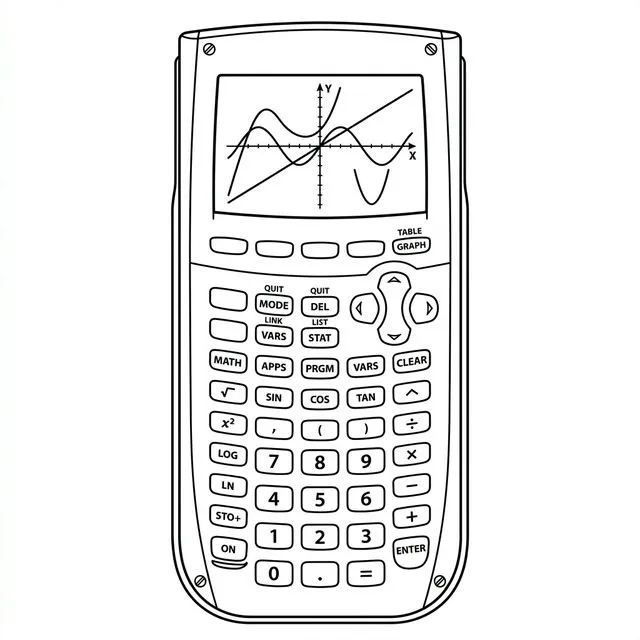
The layout completely mimics the physical device. A massive square screen sits proudly at the top. Directly underneath the screen are five gray buttons used strictly for drawing visual graphs. The middle section contains a circular arrow pad and advanced math commands. The bottom half holds all the white number keys. Your absolute most important TI-84 buttons are the colored “2nd” key (which unlocks secret hidden commands) and the “Y=” button placed at the top left corner. Note that some button labels or screen style may look a little different on TI-84 Plus CE, but the basic graphing workflow is very similar.
Basic Navigation, How to Use It, Beginner Guide, & Entering Equations
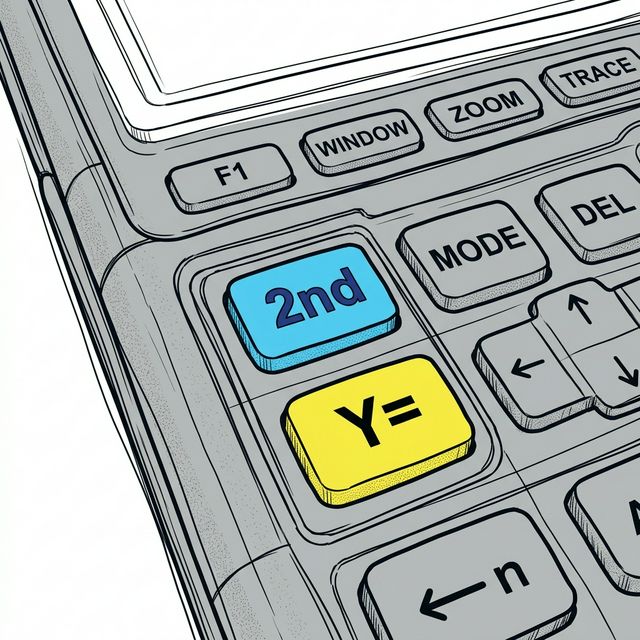
You comfortably steer through lists using the four main arrow keys and the ENTER button. For quick basic math, tap `9 * 5` and firmly press ENTER. To graph a long equation, click the “Y=” button. A list of empty spaces will appear. Type your formula using the very special “X,T,O,n” button to legally enter the letter X. Finally, click the “GRAPH” key found on the extreme top right row. A math grid perfectly traces your line across the screen instantly.
Changing Modes, Using Menus, Trigonometry & Statistics
Pushing the “MODE” button allows you to adjust the calculator’s master settings. This is highly important—if you are studying Geometry, you must change the setting from Radian to Degree, or else your geometry triangle math will be entirely wrong. For heavy statistics, press the “STAT” button. This unique menu opens columns where you type your classroom survey data. The tool can then automatically discover lines of best fit and average median values for you.
Common Calculations, Real Examples, Homework, Exam, & Classroom Use
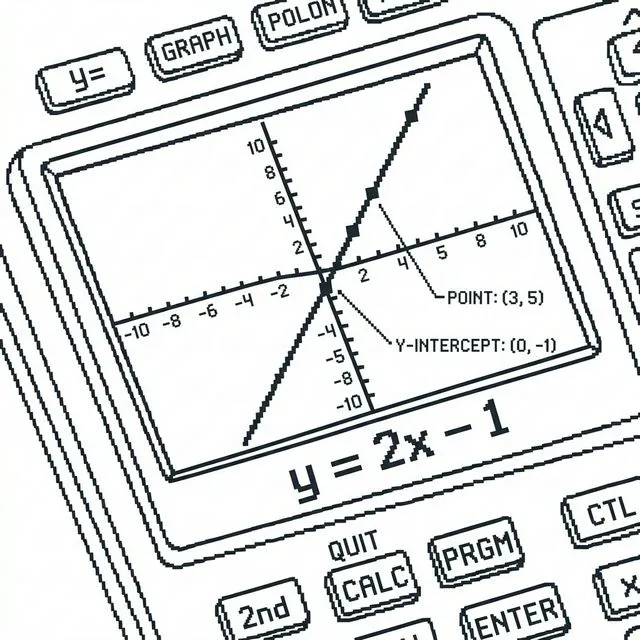
A practical, everyday example is figuring out restaurant tips. To calculate a 15% tip on a 35 dollar dinner bill, just type `0.15 * 35` and hit ENTER. For school, this is the ultimate practice tool. Because mobile phones and tablets are completely banned during official exams, doing homework on this exact device ensures your memory knows exactly where all the keys are physically located (unless you strictly need a scientific calculator for the test).
Tips for Beginners, Common Mistakes, Troubleshooting, & FAQs
A massive, common mistake is confusing the normal minus sign with the negative sign. The big minus sign (-) on the right side is exclusively used to subtract numbers (like 10 – 2). The tiny negative sign (-) at the absolute bottom makes a number negative (like -5). If you swap them backwards, the screen harshly crashes with a SYNTAX ERROR. If your graph naturally looks strange, press ZOOM, then select ZStandard (button 6) to reset the math grid back perfectly.
1. How do I clear the main screen?
Find the CLEAR button on the right side of the device. Pushing it once will wipe out the current line. Pushing it twice completely cleans the whole screen.
2. Why does my calculator keep saying “Syntax Error”?
You likely typed a subtraction minus sign instead of the negative sign at the bottom. The device is very picky about using the correct minus symbol.
3. How do I make the screen brighter or darker?
Press the colored 2nd key once, and then rapidly press the up arrow to turn up the contrast brightness, or the down arrow to lower it safely.
4. How do I quickly type the letter X for algebra?
Do not use the green ALPHA keyboard letters. Instead, press the dedicated “X,T,O,n” button sitting directly next to the green ALPHA key. This gives you a fast X.
5. How do I escape when I am stuck inside a deep confusing menu?
Gently press the “2nd” button, then firmly press “MODE” (this automatically activates the invisible QUIT command) to safely return to the home screen immediately.
Final Summary: The TI-84 Calculator has a slight learning curve, but mastering it genuinely unlocks the entire world of high school mathematics. It saves massive amounts of time, checks your homework mistakes perfectly, and is thoroughly essential for graduation.
↑ Back to Top3. TI-30XS Calculator Manual
Overview, What It Is, & Who Should Use It
The TI-30XS Calculator is an amazing tool called a “Multiview” scientific calculator. It does not draw graph pictures or lines. Instead, it is brilliantly engineered for deep number crunching and stacking thick fractions beautifully. Middle school students, biology lab students, and anyone preparing for the official GED test absolutely must use this calculator. It is formally requested and highly approved for standardized non-graphing state tests across the country.
Key Features, Layout, Screen, & Important Buttons
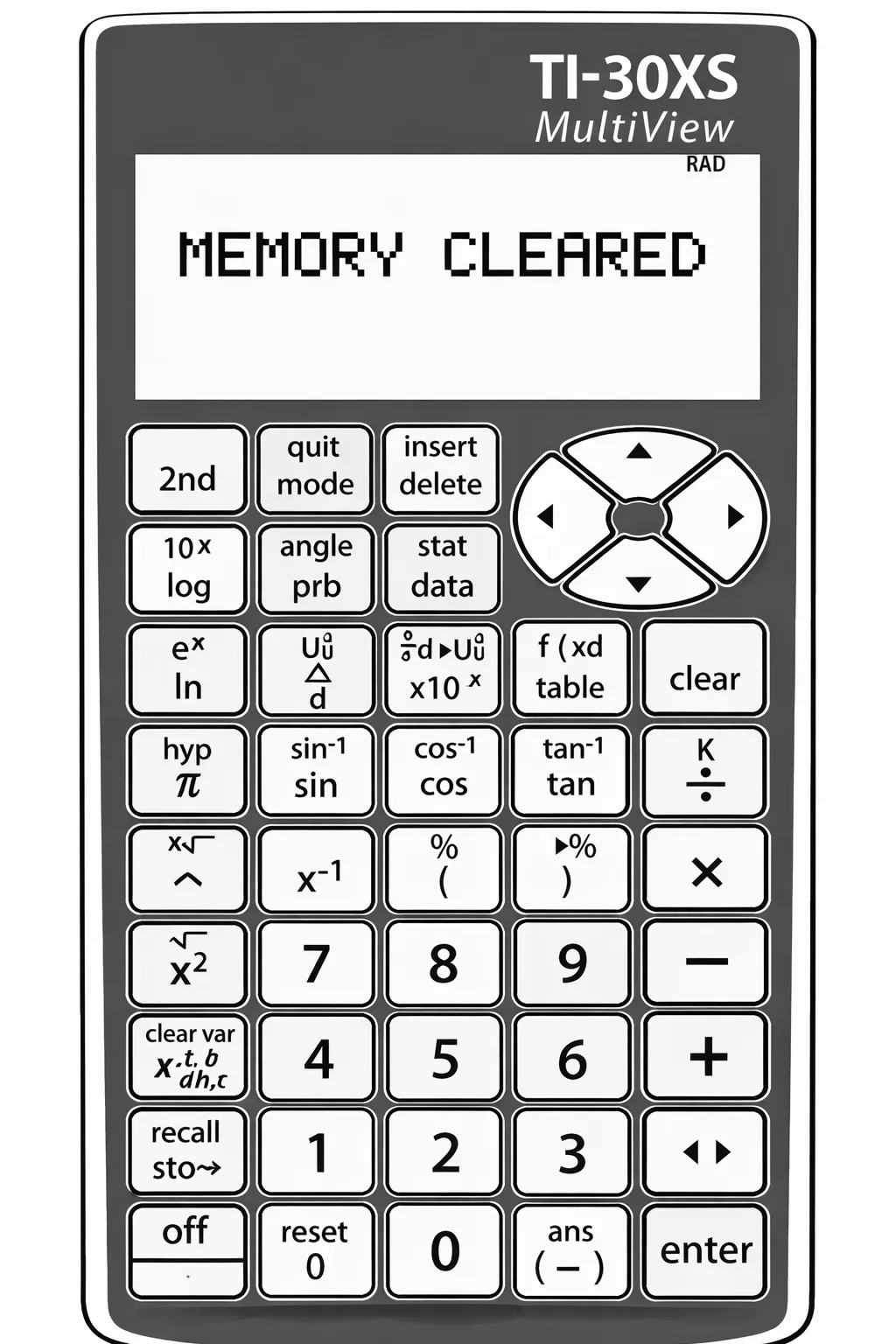
The layout features a giant, easy-to-press oval D-Pad circle at the top center. The screen is unusually tall. Because it is a TI-30XS MultiView screen, it can hold three or four past math answers at the exact same time, which is wonderful for double-checking previous work. The two most powerful buttons on the faceplate are the fraction button (labeled n/d) and the double toggle key (a button showing small arrows pointing left and right) which instantly converts long fractions cleanly into decimals.
Basic Navigation, How to Use It, Beginner Guide, & Equations
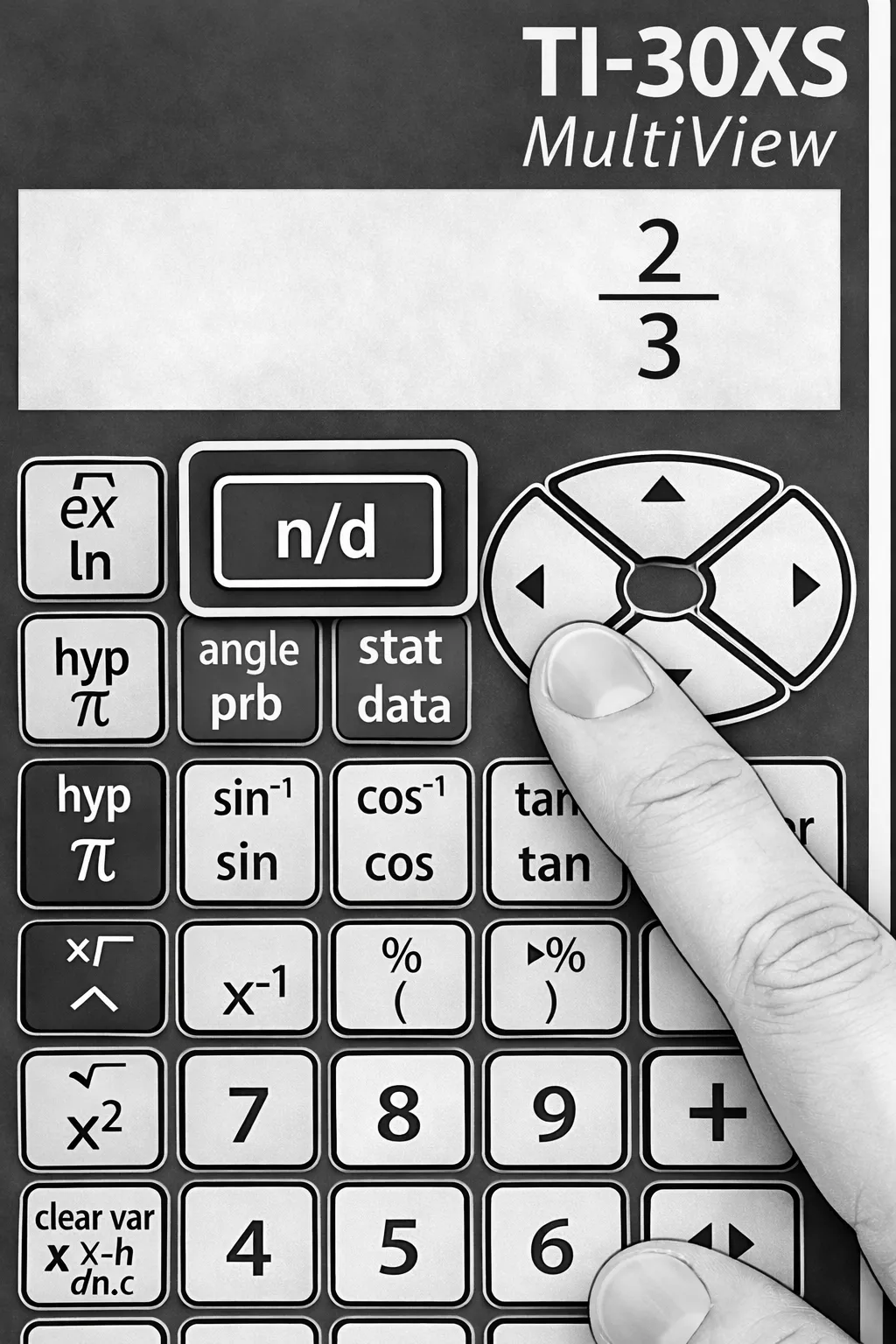
You steer the entire interface using the huge arrow keys. If you type a massive twenty-number equation and realize you made a typo, do not delete everything in panic! Just press the left arrow, go backward to the typo, overwrite the wrong number, and hit ENTER. To use fractions easily, press the “n/d” button. Type a top number, press the downward arrow, type the bottom number, and press the right arrow to safely step totally out of the fraction.
Changing Modes, Using Menus, Trigonometry & Statistics
Press the “mode” button and verify that the word “MathPrint” is heavily highlighted in black. If the calculator accidentally sits in “Classic” mode, it behaves terribly and handles fractions poorly on one flat line. The device has dedicated SIN, COS, and TAN buttons for basic visual geometry. For statistics, push the “data” key to open empty columns, slowly type in your homework numbers, and press “2nd” then “data” to run automated statistical math on them immediately.
Common Calculations, Real Examples, Homework, Exam, & Classroom Use
Normal cooking recipe conversions are incredibly easy with this. If you physically need half of a 3/4 cup measurement, push the fraction key to type 1/2, push multiply, push fraction again to type 3/4, and press ENTER. It stacks them exactly like your textbook and answers 3/8 automatically. Teachers deeply love this calculator for exams because printing the math vertically prevents struggling students from making very silly order-of-operation PEMDAS errors.
Tips for Beginners, Common Mistakes, Troubleshooting, & FAQs
If you see a bizarre “Syntax Error” message block the screen, it typically means you typed two math symbols side-by-side by pure accident, such as typing `4 + + 2`. Use the navigation arrows to locate the extra plus symbol and delete it. Additionally, if there is a tiny “SCI” written near the top edge of your screen, your answers will completely look like crazed science codes. Quickly press “mode” and switch it securely back to “NORM”.
1. How do I properly type a fraction?
Press the button labeled “n/d”. It will give you a blank top box and a bottom box to safely build your fraction piece by piece.
2. How do I quickly change a fraction answer into a decimal point?
Press the special double arrow button located right above the main Enter key. It instantly swaps fractions back into simple decimal numbers.
3. Can this particular calculator draw math graphs?
No, it cannot draw pictures or visual line graphs. However, it does have a “Table” button that can generate long coordinate number lists instead.
4. How do I delete just one tiny typing mistake?
Use the big round arrow pad to slide the blinking cursor directly over the bad character, then delicately press the DEL key to destroy it safely.
5. Why do my answers have bizarre heavy scientific symbols?
You probably bumped the calculator into Scientific Mode by accident. Press “mode” and use your arrows to boldly select “NORM” to restore standard math.
Final Summary: The TI-30XS is an absolute masterpiece for basic core mathematics. The unique MathPrint screen totally prevents formatting mistakes, making massive fractions and extreme roots totally stress-free for learners of completely all ages.
↑ Back to Top4. TI-83 Calculator Manual
Overview, What It Is, & Who Should Use It
The TI-83 Calculator is a profoundly tough, famous, classic graphing machine representing an older graphing style. It is quite literally one of the original tools that originally made visual algebra globally easy in schools. Even though the interior processor and screen are somewhat older, its brain is a total powerhouse. It easily handles advanced wide curves, corporate business math, and calculus. High school students, university accountants, and teenagers receiving durable hand-me-down devices from their parents should use this continually.
Key Features, Layout, Screen, & Important Buttons
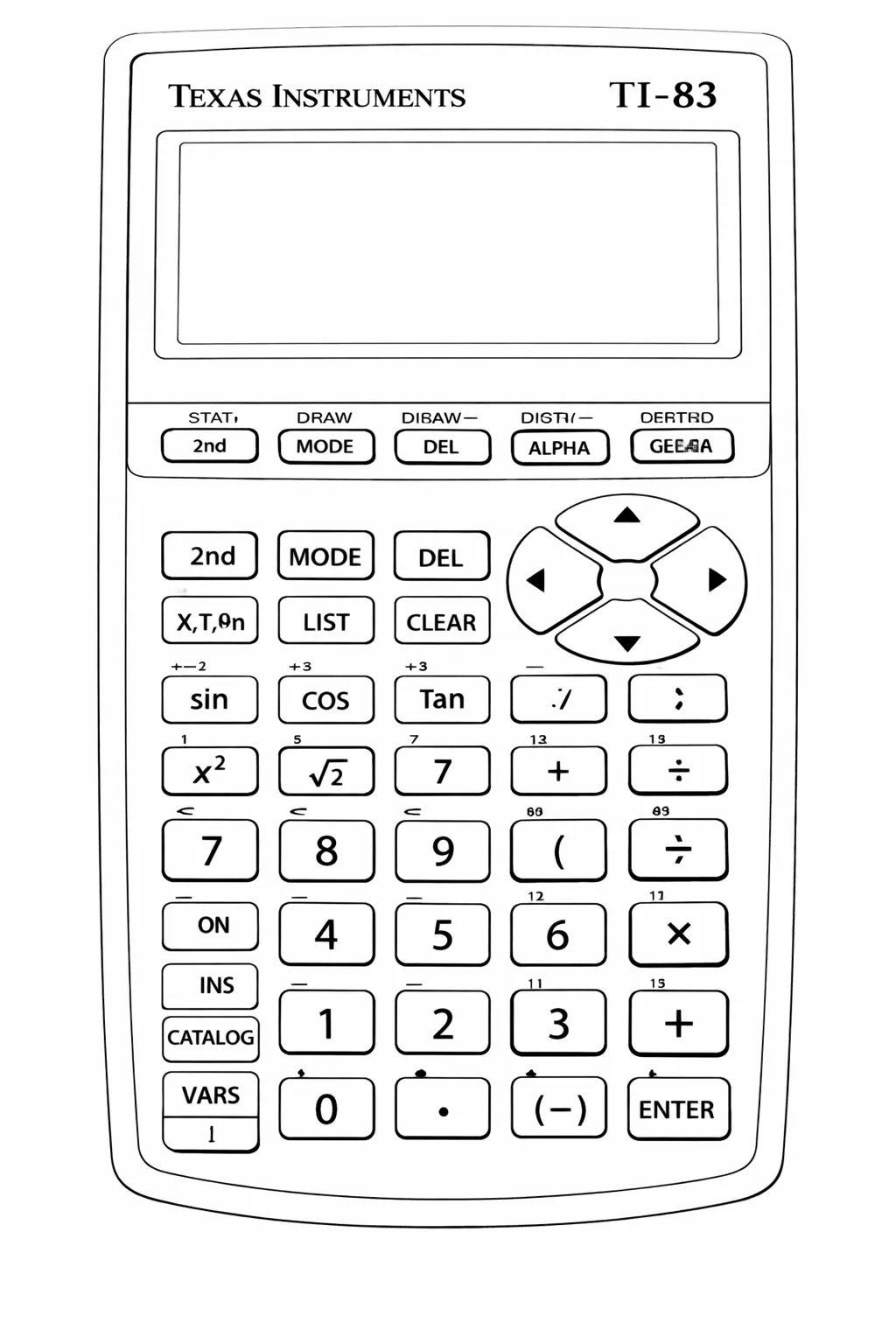
The physical device is wonderfully boxy. The white number keys comfortably reside at the bottom. Above them sit rows of blue and gray advanced action keys. Directly below the screen is a single firm row of five keys exclusively dedicated to mapping graphs. The yellow “2nd” key is extremely vital to access completely hidden functions printed directly on the casing. The bold “MATH” button on the left edge is also essential to correctly open menus for roots and thick fractions.
Basic Navigation, How to Use It, Beginner Guide, & Entering Equations
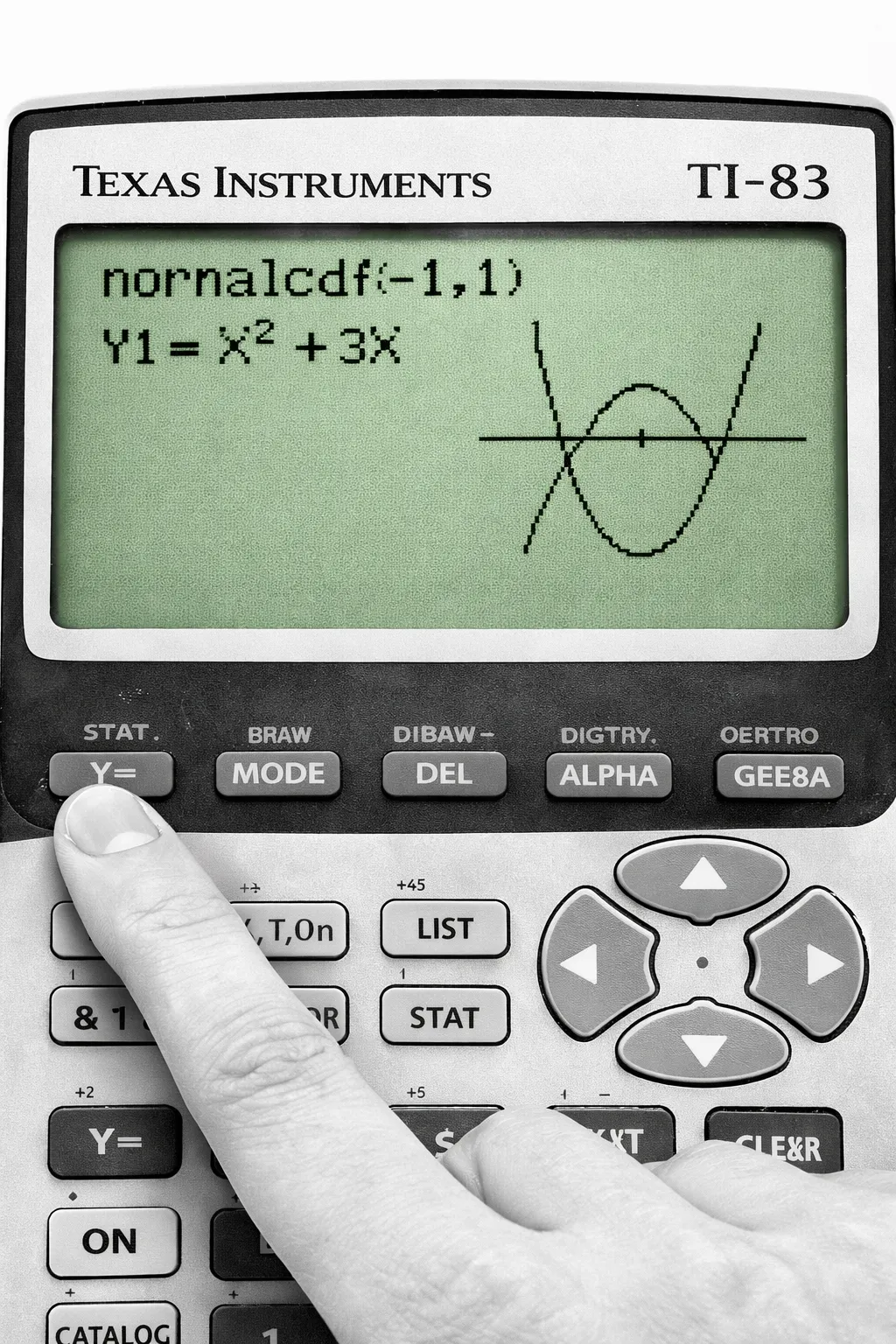
Mathematical commands print out uniformly left-to-right on a single line. Because of the slightly older TI-83 screen format, you must be extremely careful. If you need to make fast corrections, move patiently with the circular arrow pad, press “2nd”, then “DEL” to enter safe Insert mode so you don’t accidentally erase existing text. To draw a massive graph, simply press “Y=”, type your formula securely using the “X,T,O,n” button to get X, and firmly hit GRAPH.
Changing Modes, Using Menus, Trigonometry & Statistics
Gently tap the “MODE” button. Here, you can actively change the calculator rounding functions. If you carefully set “Float” to the number 2, the calculator forever acts exactly like banking accounting software and permanently rounds wild money to two exact decimal spots. For extreme college statistics, press “STAT”, firmly choose “Edit”, input vast lists of college survey data, and run highly advanced ANOVA tests or T-Tests completely securely and seamlessly.
Common Calculations, Real Examples, Homework, Exam, & Classroom Use
A delightfully fun home project is finding the exact square footage of an odd room. If you physically measure a wall at 10.5 feet by 12.2 feet, just type the raw decimals and multiply. The older TI-83 truly shines brightly in official government classrooms because it is purely 100% permitted on the SAT, ACT, and AP College Board exams. It computes exactly the same powerful equations as brand-new models without ever breaking the strict testing facility rules.
Tips for Beginners, Common Mistakes, Troubleshooting, & FAQs
The largest fundamental problem beginners routinely face is completely lacking parentheses. On these older standard screens, typing `10 / 2 * 5` is mathematically totally different mechanically from `10 / (2 * 5)`. The strict TI-83 computer follows extreme order-of-operation rules. Always deeply wrap your complex fractions in parentheses! If the screen genuinely turns on but is incredibly dark or totally visually absent, push the yellow “2nd” button, then quickly press and stubbornly hold the UP arrow to rapidly fix the contrast ink.
1. Is this actually identical inside to the wildly popular TI-84?
They are fundamentally identical twin brothers. The physical layout buttons are in the exact identical locations, but the TI-83 simply has a slightly older green-tinted screen style and less interior memory.
2. How do I physically totally turn the calculator off?
To safely shut it down, press the yellow 2nd button, and then press the ON button resting at the absolute bottom left corner.
3. Why is my screen completely blank but the device is on?
Your screen contrast might have accidentally dropped to zero. Softly press the 2nd button, and then stubbornly hold the Up arrow pad to push the ink brightness higher.
4. How do I aggressively reset the entire memory?
Carefully press 2nd, the Plus sign (+), choose Mem Mgmt, and happily select Reset to flush out old broken programs returning the device to normal.
5. Do I constantly need to use basic parentheses for division?
Absolutely yes. Because the TI-83 does not stack fractions visually, grouping complex division jobs tightly inside parentheses keeps the strict math rules super safe.
Final Summary: The mighty TI-83 graphing calculator is a remarkably tough, incredibly completely reliable workhorse. Do not be needlessly confused by the older green-gray pixel screen; it effectively calculates stunning mathematics perfectly and securely crushes high school algebra without a single flaw.
↑ Back to Top5. TI-85 Calculator Online
Overview, What It Is, & Who Should Use It
The profound TI-85 Calculator Online is extremely heavily advanced. It was specifically engineered purely for college physics, extreme intense engineering, and electrical computer coding math. Even though it physically looks exactly like normal school graphing tools, its powerful brain routinely handles extreme programming, complex dense physics, and weird vector numbers. It functions as an advanced graphing calculator meant specifically exclusively for university majors and focused technical college degree students.
Key Features, Layout, Screen, & Important Buttons
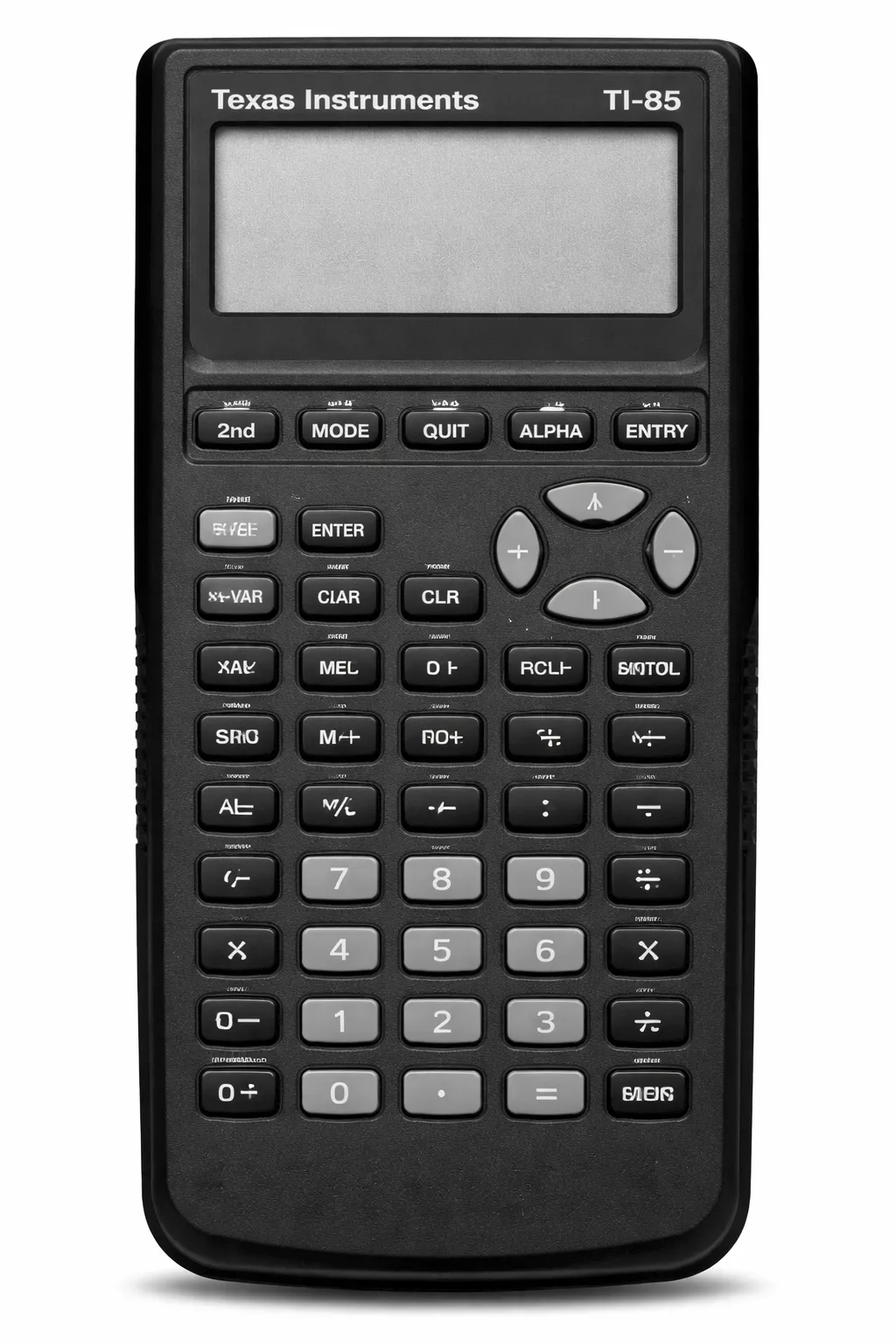
The dense keypad unexpectedly has many alphabet letters clearly written entirely across it for rapid programming typing. The absolute most significant feature is the single row of five tiny “soft keys” laying neatly completely under the main screen. They are simply labeled F1 through F5. You entirely do not use traditional drop-down list menus on this device. Instead, menu words boldly appear at the bottom edge of the screen, and you simply press the physical F-button sitting directly firmly underneath your actual choice to solidly confirm it.
Basic Navigation, How to Use It, Beginner Guide, & Entering Equations
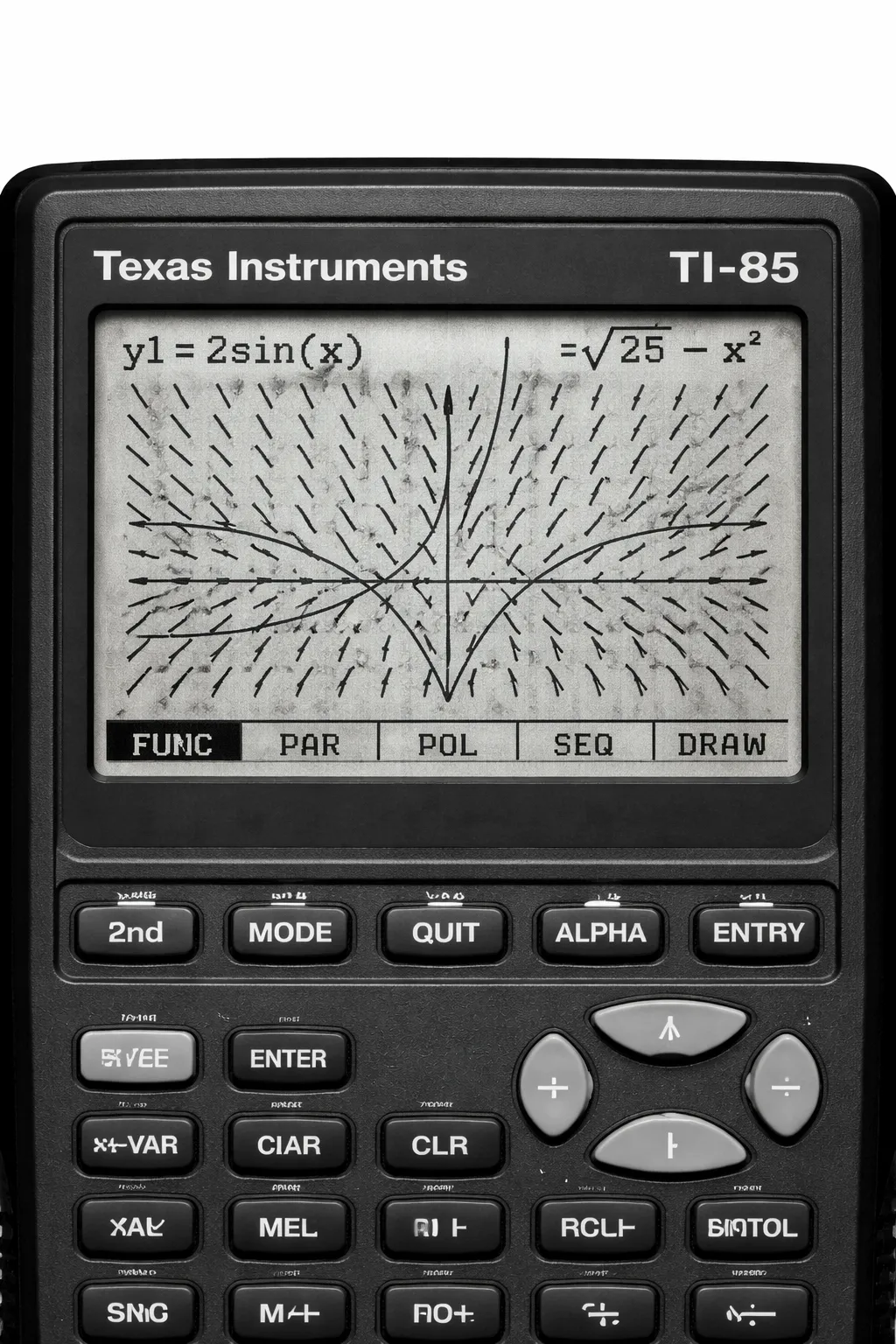
Complete navigation directly revolves incredibly around the soft keys. If you badly want to use a math tool, tap MATH. A clean ribbon of menus heavily appears precisely at the screen’s bottom border edge. Press the exact F-key below the pure option you logically want. At completely first, it feels completely strange, but soon it actively allows you to aggressively fly through deep menus much faster than checking a standard bumpy arrow pad. To draw graphs, deeply open the GRAPH ribbon menu, find the `y(x)=` tab with your soft F-keys, and fully type your wonderfully deep equation.
Changing Modes, Using Menus, Trigonometry & Statistics
By heavily tapping the firm MODE button, you completely unlock university-level extreme settings. You can instantly completely switch your direct answers firmly into “Engineering Notation” or super heavy “Scientific Notation.” For incredibly intense trigonometry, the TI-85 naturally fundamentally calculates “imaginary numbers” like the pure letter i. Weaker standard calculators instantly visibly break down when casually asked to find the square root of -1, but the TI-85 flawlessly processes it smoothly and quickly.
Common Calculations, Real Examples, Homework, Exam, & Classroom Use
Computer science degree homework is deeply intensely improved with this absolute tool. A learning student can typically type a base-10 number exactly like `255`, safely open the powerful BASE menu ribbon, and instantly directly translate it to fundamental programming Binary computer code (11111111), utterly avoiding long, extremely painful handwritten division. Always politely explicitly ask university professors deeply before casually bringing this directly into an exam; some educators heavily legally ban the TI-85 strictly purely because it is remarkably too incredibly powerful.
Tips for Beginners, Common Mistakes, Troubleshooting, & FAQs
A huge, tragic beginner painful mistake is continually actively trying to repeatedly push the main ENTER key to blindly select a screen ribbon menu. That terrible move will honestly only simply give you a loud error. You absolutely must constantly remember to manually press the gentle F1 through F5 keys to pick screen menus flawlessly. If you ever become heavily stuck extremely deep within a terribly confusing maze of wild sub-menus, just simply tap the “EXIT” button positioned perfectly on the top left. The brilliant EXIT key steadily walks you safely comfortably backward essentially one step at a simple time.
1. Is this genuinely appropriate or safe for 8th grade simple homework?
Absolutely legally not. It is remarkably far entirely too ridiculously complex and the ribbons are deeply tailored specifically toward physics arrays. Safely strictly stick to the profoundly simpler TI-84.
2. How do I actually pick a menu item writing word at the bottom screen edge?
Do NOT touch the ENTER button for this. Precisely push the correct F1 to F5 physical button positioned directly below the word to actively select it.
3. How do I escape when deeply stuck perfectly inside a confusing maze of heavy menus?
Never panic. Find the wonderful “EXIT” button happily living openly on the upper left side, and tap it repeatedly to safely march backward beautifully step by step.
4. Can this calculator easily do weird imaginary number mathematics purely for college?
Yes. It embraces extremely tough complex numbers entirely perfectly, securely making imaginary physics variables shockingly simple to type out boldly and quickly handle properly.
5. How do I turn the TI-85 totally safely physically off?
Press the brightly painted 2nd key strongly once, and then softly tap the ON key located directly safely at the solid bottom side edge to completely sleep smoothly.
Final Summary: The brilliant TI-85 Calculator absolutely demands extreme patience to finally genuinely learn, but purely once heavily mastered, it reliably provides jaw-dropping stunning engineering power. For electrical math and intense polygon plotting, it remarkably remains a brilliant, immensely satisfying legendary machine.
↑ Back to Top