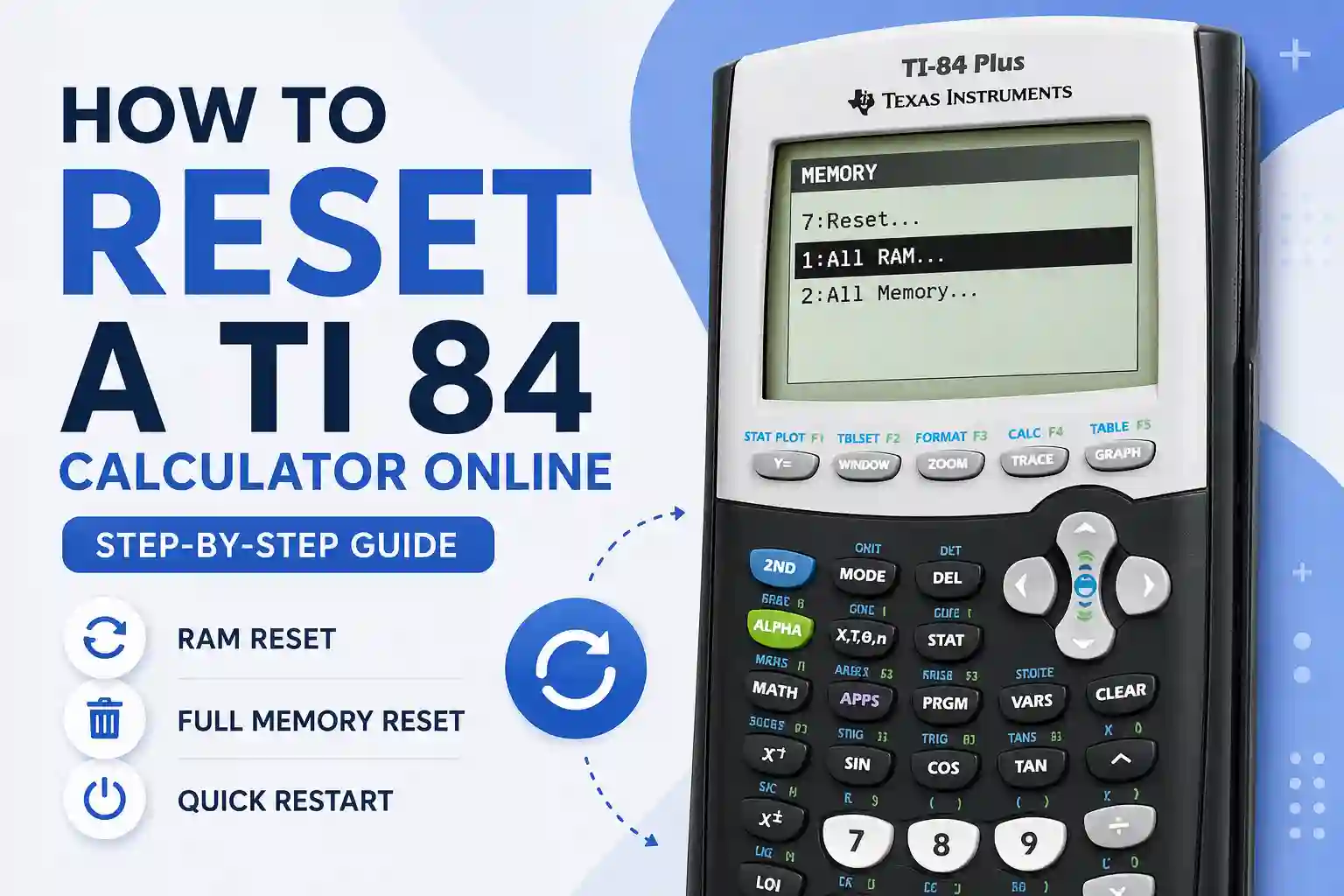
How to Reset a TI 84 Calculator Online Step-by-Step Guide
The TI 84 calculator online is one of the most popular graphing calculators used by students, teachers, and professionals. If you’re using our online TI 84 simulator, you may sometimes need to reset it to fix freezing, display errors, or need a reset before taking an exam. Knowing how to reset the TI84 calculator can save you time, reduce stress, and keep everything running smoothly. This guide explains simple step-by-step ways to reset the TI 84 online to factory defaults, clear its memory, and solve common issues.
Methods to Reset the TI 84 Calculator
Learn how to reset the TI 84 Calculator with easy step-by-step methods, including RAM clear, factory reset, and clean Full Memory. Follow the methods below to reset the calculator for better performance.
Reset to Factory Defaults (RAM Reset)
This is the most common and safest way to reset your TI 84 calculator online. It brings the calculator back to its original settings by clearing temporary data, and you can continue using its graphing functions.
Steps:
- Press 2nd
- Press + (MEM key)
- Select 7: Reset
- Choose 1: All RAM
- Press Reset
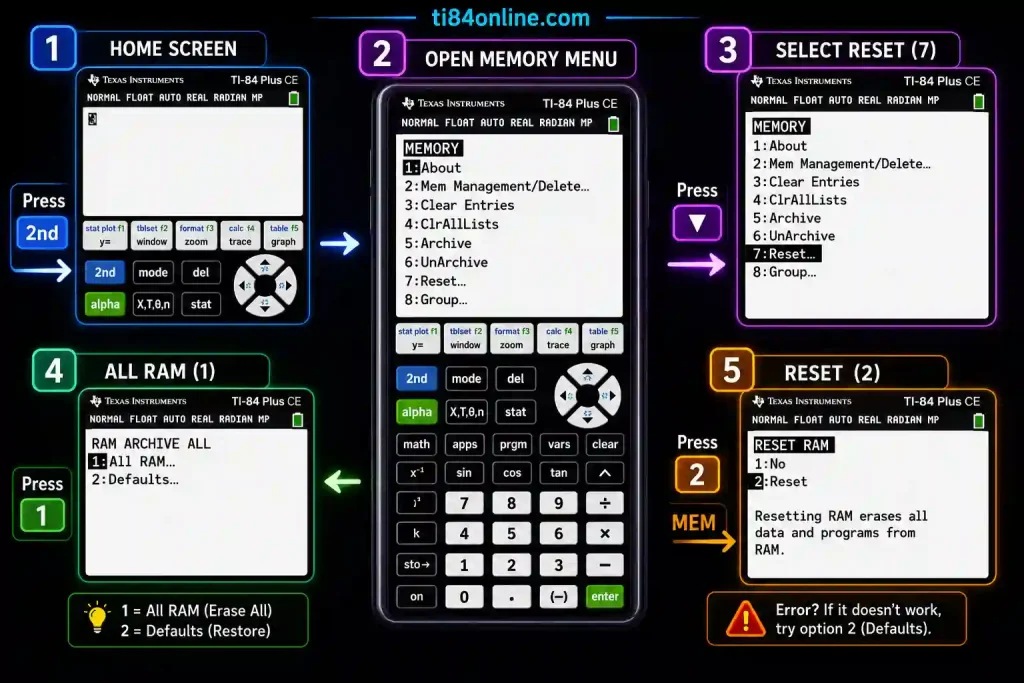
Note: This action restores the tool to factory defaults without deleting your saved projects or customizations.
Full Memory Reset
Use this option when you need to remove all saved files, applications, custom settings, and calculator data:
- Press 2nd + + (MEM)
- Select 7: Reset
- Move to the All tab
- Choose 1: All Memory
- Press ENTER
- Select 2: Reset to confirm
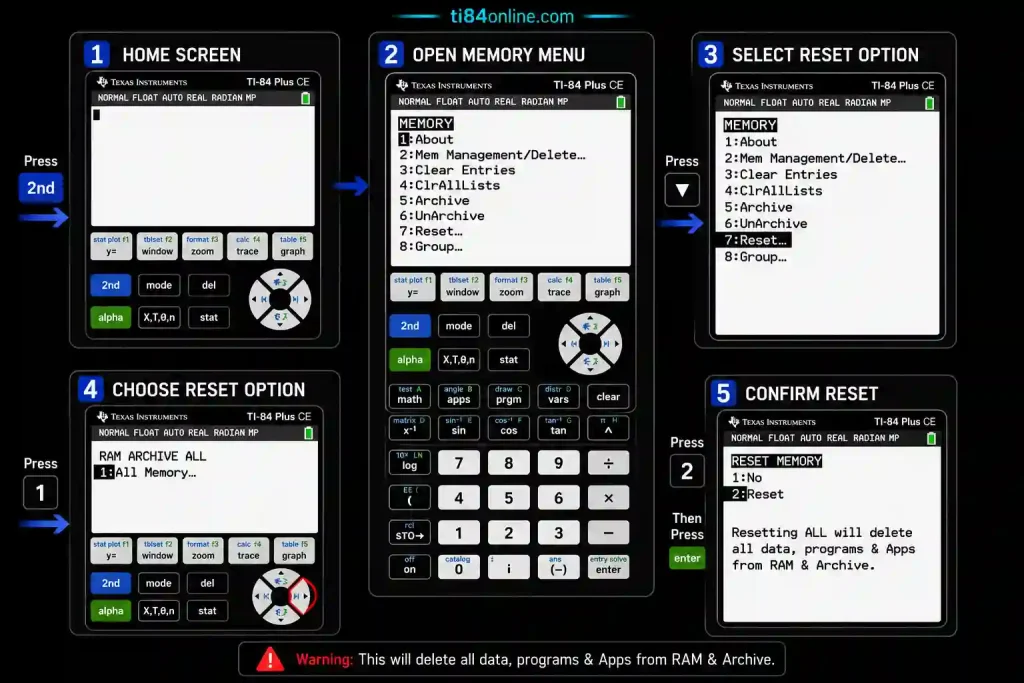
Note: This process clears all stored content and returns the TI 84 Calculator to its original factory setup.
Frozen Screen Reset (Quick Restart)
If the calculator stops responding or becomes stuck on a screen, use this restart method:
- Press and hold 2nd + Left + Right + ON
- Keep holding the keys for a few seconds
- Release all buttons
- Wait for the calculator to restart
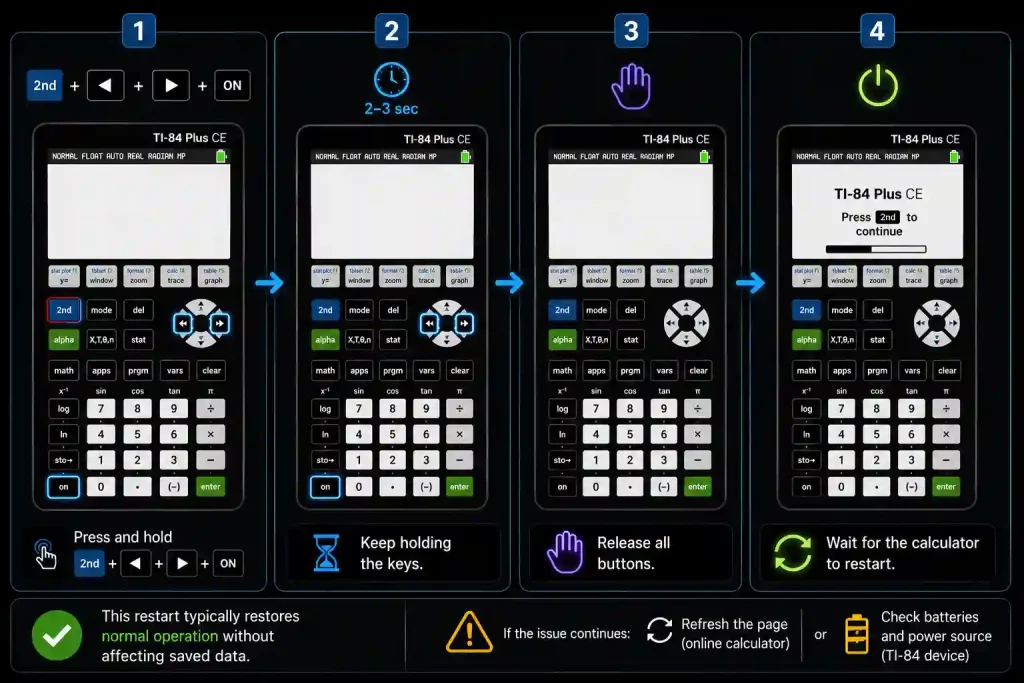
Note: This restart typically restores normal operation without affecting saved data. If the issue continues, refresh the page when using an online calculator or check the batteries and power source on a physical TI-84 device.
RAM Reset vs. Archive Reset vs. All Memory Reset
Before resetting your TI 84 calculator, it’s worth knowing the difference between RAM Reset, Archive Reset, and All Memory Reset. Each method works differently, and it’s important to choose the right one and know when to use it.
RAM Reset (Clear Temporary Data)
What it does: Clears RAM data(Temporary memory), such as equations, variables, and recent computations.
When to use:
- If the calculator is responding slowly.
- If you are facing minor errors or unexpected behavior.
- When you need to clear temporary data without affecting archived content.
Effect on data: Archived programs, apps, and archived files are not removed.
Archive Reset (Clear Archived Content)
What it does: Removes data stored in the calculator’s archive, including archived programs, applications, and other saved files.
When to use:
- Before exams that do not allow stored content.
- When your TI 84 is running low on archive memory, you need to remove stored files.
Effect on data: Archived content is deleted, while calculator settings and system functions remain unchanged.
All Memory Reset (Factory Reset)
What it does: Restores the TI 84 calculator to its original factory state by removing all stored data, applications, programs, archived files, and custom settings.
When to use:
- When you need a completely fresh start.
- If other reset methods have not resolved the problem.
Effect on data: All personal data and custom settings are cleared, restoring the TI 84 calculator to its original settings.
When Not to Reset Your TI-84 Calculator
However, resetting the TI 84 calculator can resolve many common issues, and it is not always the best solution. Depending on the reset method you choose, important files, programs, applications, and settings may be permanently removed. Before resetting the calculator, make sure important data has been backed up, because sometimes the problem cannot be solved through simple troubleshooting steps.If you have saved apps or programs that are not backed up, performing a full memory reset or archive reset will erase them permanently. Always back up your calculator using TI Connect™ software before clearing the memory.
- When a simple restart is enough: For minor issues such as a frozen screen, use a soft reboot (press and hold 2nd + Left + Right + ON) instead of resetting the calculator.
- Before an exam, check the calculator requirements carefully. If approved programs or apps are allowed, resetting the calculator may remove tools you are permitted to use.
- If the issue is power-related, A low battery can prevent the calculator from turning on. Check the battery level and recharge or replace the batteries before attempting a reset.
Note: In short, only reset your calculator when needed, and back up important apps and programs before clearing any data.
Quick Troubleshooting Tips
1. Graph not appearing?
Verify that the equation is enabled in the Y= menu before graphing.
2. Seeing an error message?
Press CLEAR, then enter the function again and check for any mistakes.
3. Calculator not powering on?
Install fresh batteries or recharge the device if your model has a rechargeable battery.
Frequently Asked Questions
1. Does resetting delete my programs on the online TI-84?
Yes, a full memory reset deletes everything. A RAM reset only clears temporary data and keeps programs safe.
2. Do I need to reset before exams?
Yes, you have to reset the calculator before the exams if the institute does not allow stored equations or archive files.
3. How do I know the reset worked?
After resetting, you will see the default home screen with no stored equations or graphs.
4. Can I undo a reset?
No, once the memory is cleared, the data cannot be recovered. Always save important programs first.
5. Is the online TI 84 reset the same as the physical calculator?
Yes, our online simulator works exactly like the real TI 84.
6. Why is my online TI-84 freezing often?
This usually happens due to too many variables or complex graphs in memory. A simple RAM reset often resolves it.
7. Can I save my programs before resetting?
Yes, use the save/export feature available in our online TI 84 to store your programs safely.
8. Does refreshing the page reset the calculator?
No, refreshing the page clears the current session but may not perform a full memory reset.
Conclusion
Resetting your TI 84 calculator online can be an effective way to resolve common problems such as freezing, error messages, or performance issues. Whether you need a quick reset or a complete memory clear, choosing the right method can help restore normal operation. Regular maintenance and proper troubleshooting can keep your TI 84 calculator running smoothly for graphing, calculations, and everyday use. If your calculator still does not work as expected after a reset, you can also try quick troubleshooting steps.