How to Use TI-84 Calculator for Beginners (Step-by-Step Guide)
The TI-84 can look hard at first. Too many buttons. Too many screens.
But once you learn a few basic keys, it starts to feel simple and useful.
Introduction
If you just got a TI-84, you are not alone if it feels confusing. Many students open it, press a few buttons, and get stuck right away. The good news is that you do not need to learn everything at once.
This guide will show you how to use TI-84 calculator for beginners in small, easy steps. You will learn what the main buttons do, how to type basic math, how to check important settings, and how to graph your first equation. Official TI materials center beginner learning around the home screen, basic functions, and graphing, which is why this guide follows that same path in a simpler way.

What Is a TI-84 Calculator?
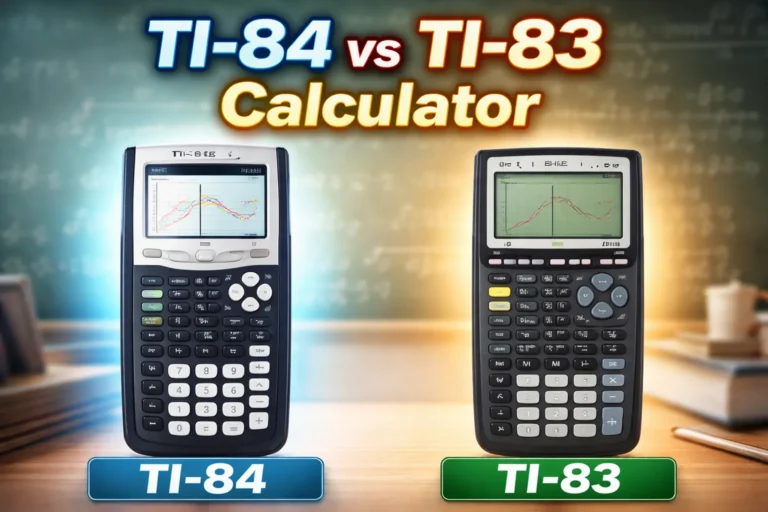
A TI-84 is a graphing calculator. That means it can do basic math, solve many school-style calculations, and draw graphs from equations. It is often used in algebra, geometry, precalculus, calculus, and science classes. TI’s official guidebooks and lessons present it as a graphing calculator built for classroom math work and graphing tasks.
In simple terms, it is more than a normal calculator. A basic calculator can add or divide. A TI 84 online can also work with variables, tables, functions, and graphs. That is why schools often ask students to learn it early.
TI-84 vs Basic Calculator vs Scientific Calculator
| Feature | Basic Calculator | Scientific Calculator | TI-84 Calculator |
|---|---|---|---|
| Basic arithmetic | Yes | Yes | Yes |
| Fractions | Limited | Yes | Yes |
| Exponents and roots | Limited | Yes | Yes |
| Trigonometry | No | Yes | Yes |
| Variables | No | Limited | Yes |
| Graphing | No | No | Yes |
| Tables | No | No | Yes |
| Equation input | Very basic | Medium | Advanced |
| Best for | Simple daily math | School math and science | Algebra, graphing, advanced school math |
| Learning level | Very easy | Easy to medium | Medium at first, then easy with practice |
If you have only used a basic calculator before, the TI-84 may feel like a big jump. But the extra buttons are there to help with graphs, equations, tables, and classroom math. Once you learn the main keys, it becomes much easier to use.
Getting to Know the TI-84 Layout
Before you solve anything, take one minute to look at the calculator.
At the top, you will see the screen. This is where your math, menus, and graphs appear. On the home screen, you type a calculation and then press ENTER to get the answer. TI explains that the home screen stores many past entries and answers in history, which is very helpful for beginners.
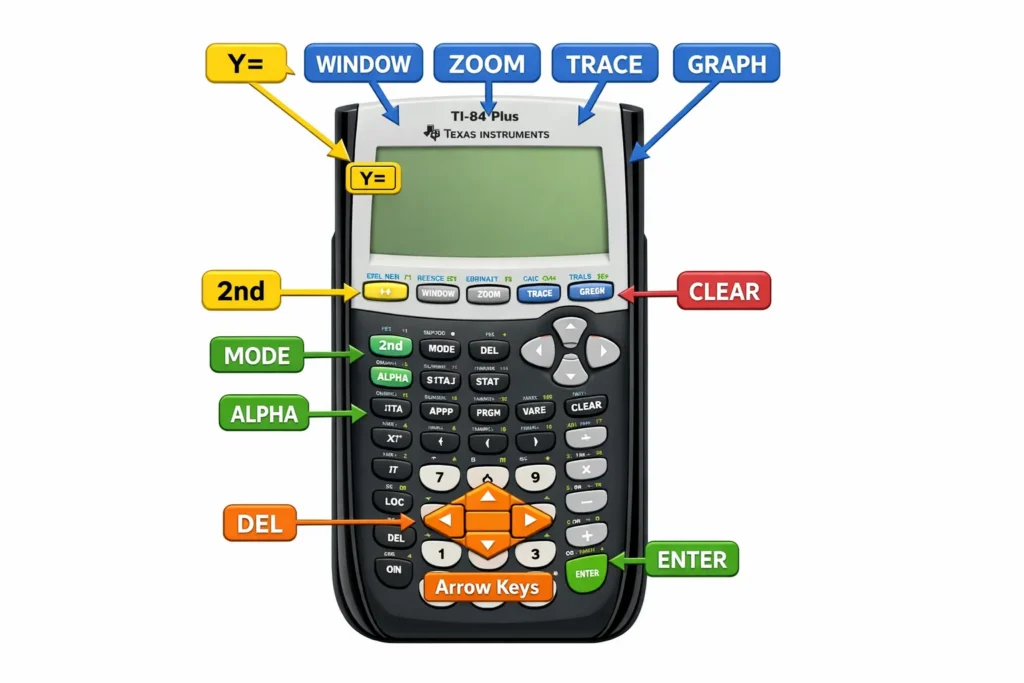
Under the screen, you will see rows of keys. The most important ones for beginners are these:
Screen
This shows what you type and what the calculator returns. When you graph, the graph appears here. When you open a menu, you will see a list on the screen.
Number keys
These are the keys from 0 to 9. You use them the same way you do on a normal calculator.
Arrow keys
These help you move around the screen, menus, and old entries.
Y=
This opens the equation editor. You type functions here before graphing. Official TI tutorials and Hawkes both use Y= as the first graphing step.
WINDOW
This controls the graph view. It lets you choose what x-values and y-values the screen should show.
ZOOM
This helps you resize the graph view fast. A common beginner option is ZStandard, which sets a standard graph window. Montgomery College and other tutorials point beginners to a standard window when a graph looks wrong.
TRACE
This lets you move along a graph and read point values.
GRAPH
This draws the graph after you enter an equation.
2nd
This key gives you the second function printed above many keys. On TI calculators, many buttons do two jobs, and 2nd is how you reach the top function.
ALPHA
This lets you type letters. You need it for variable names and some commands.
MODE
This opens settings like degrees or radians and MathPrint or Classic display.
CLEAR
This clears the current line or screen area, depending on where you are.
DEL
This deletes one character or removes an old graph equation line.
ENTER
This confirms a choice or runs a calculation.
X,T,θ,n
This key is used when typing the variable x in graphing mode.
How to Turn On and Start Using the TI-84
Now let’s do your first steps.
Step 1: Turn it on
Press the ON key. TI’s official getting-started material shows that pressing the power key brings up the startup information screen first on some models, then the home screen.
Step 2: Go to the home screen
If you are not already there, press 2nd and then MODE to quit back to the home screen. On TI calculators, 2nd plus MODE works as QUIT.
Step 3: Type your first calculation
Press:
2 + 3
Then press ENTER.
You should see 5.
Step 4: Clear the line
Press CLEAR.
Now the entry line is empty again.
That is your first win. Small, but important.
Basic TI-84 Skills Every Beginner Should Learn
These skills make everything easier later.
How to type numbers and symbols
Typing numbers is easy. For signs like +, -, ×, and ÷, use the math keys on the main keypad.
One important note: the TI-84 has a special key for the negative sign. This is not always the same as subtraction. If you want to type negative 4, use the negative key, then 4. Beginners often mix these up.
How to use parentheses
Parentheses matter a lot. They tell the calculator what to do first.
For example, these are not the same:
2 × 3 + 42 × (3 + 4)
In the first one, the answer is 10. In the second one, the answer is 14.
If your answer looks strange, missing parentheses is often the reason.
How to delete mistakes
If you typed one wrong symbol, press DEL. That removes one part.
If the whole line is messy, press CLEAR and start fresh.
How to use 2nd and Alpha keys
The 2nd key opens the second function printed above a key. For example, on many TI-84 models, 2nd with MODE gives you QUIT.
The ALPHA key lets you type letters. That is useful when you store a number in a variable like A or B.
How to recall previous answers
The TI home screen keeps a history of what you entered and what answers you got. TI’s home screen guide says you can scroll through that entry history with the up and down arrows and paste earlier entries or answers onto the current line.
This is very helpful. Let’s say you solved something long and want to use the answer again. Just press the up arrow, highlight the old line, and bring it back instead of typing everything again.
How to store a value in a variable
You can save a number as a letter.
For example, if you want to store 12 in A, type the value, use the store command, then press ALPHA and the key for A. After that, the calculator remembers that value until you change or reset it.
This is useful when one number appears again and again in homework.
How to Do Basic Math on a TI-84
Now let’s do the most common school tasks.
Addition, subtraction, multiplication, division
These work like a normal calculator.
Examples:
7 + 8 → ENTER15 - 6 → ENTER9 × 4 → ENTER20 ÷ 5 → ENTER
Nothing hard here. This is a good place to practice button feel.
Fractions and decimal conversion
Some TI-84 models and modes make fractions easier to view, especially in MathPrint display. Montgomery College’s beginner tutorial notes that users may have MathPrint and may need to switch display style depending on what they see.
For a simple fraction, enter it using the fraction template if your screen shows one, or use parentheses with division.
Example:
(3 ÷ 4) → ENTER
You should get 0.75.
If your class wants fractions instead of decimals, the exact steps can depend on model and mode, but beginners should first learn to enter the value correctly and then check display options.
Exponents and square roots
For powers, use the exponent key.
Example:
5^2 means 5 squared.
Type 5, then exponent, then 2, then ENTER.
You should get 25.
For square roots, use the square root function from the math menu or the printed second function, depending on model behavior.
Example:
sqrt(49) → ENTER
You should get 7.
TI’s beginner resources group these kinds of basic functions under home screen and basic calculator use.
Negative numbers
To type negative 3, do not use subtraction in the middle of nowhere. Use the negative key.
Example:
-3 + 8 → ENTER
This gives 5.
If you use the wrong minus key, you may get an error or a wrong expression format.
Order of operations
The TI-84 follows normal math order of operations. That means parentheses come first, then powers, then multiplication and division, then addition and subtraction.
So this:
2 + 3 × 4
gives 14, not 20.
If you want 20, type:
(2 + 3) × 4
This is why parentheses are one of the most important beginner habits.
Important Mode Settings Beginners Should Check
A lot of wrong answers come from the wrong mode, not wrong math.
Degrees vs radians
This matters in trigonometry. If your class problem uses degrees but your calculator is in radians, your answer will look wrong.
Open MODE and check whether the calculator is set to Degree or Radian. Montgomery College’s TI-83/84 beginner tutorial calls attention to this because it affects common class work.
A simple way to remember it:
- Use degrees for angles like 30°, 45°, 90°
- Use radians when your class or teacher says radians
MathPrint vs Classic
MathPrint shows math in a more textbook-like way. Fractions and some expressions may look cleaner on screen. Classic is more plain and linear.
If your screen does not look like a friend’s screen, this setting may be the reason. Montgomery College notes this issue for TI-84 users, and TI’s guidebooks also separate display behavior as part of getting started.
When wrong mode gives wrong answers
Let’s say you type a trig problem and your answer looks strange. Do not panic.
Check:
- Degree or Radian mode
- Display mode
- Whether parentheses are correct
For beginners, mode mistakes are one of the most common problems.
How to Graph on a TI-84 Step by Step
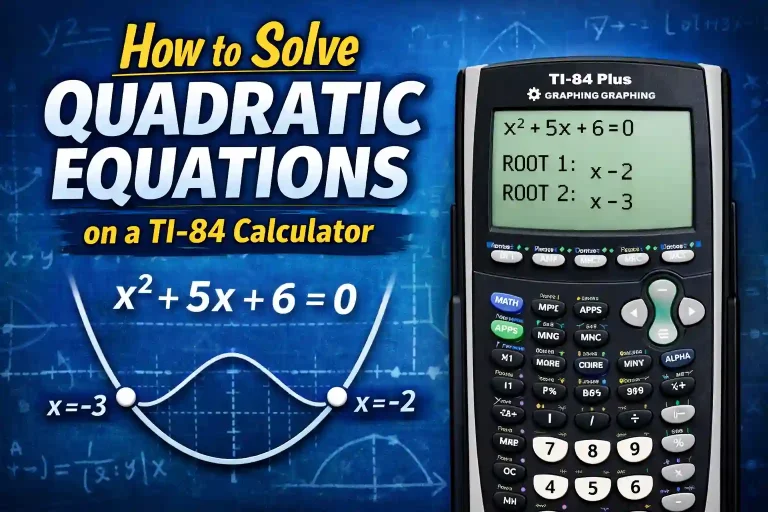
Graphing is one of the main reasons students use a TI-84. TI’s official tutorials have a full graphing section, and beginner guides also treat graphing as a core first skill.
Let’s graph a simple equation:
y = x + 2
Step 1: Press Y=
A list will open on the screen. You will see lines like Y1=, Y2=, and so on.
Step 2: Enter the equation
On the Y1= line, type:
X + 2
To type x, use the X,T,θ,n key.
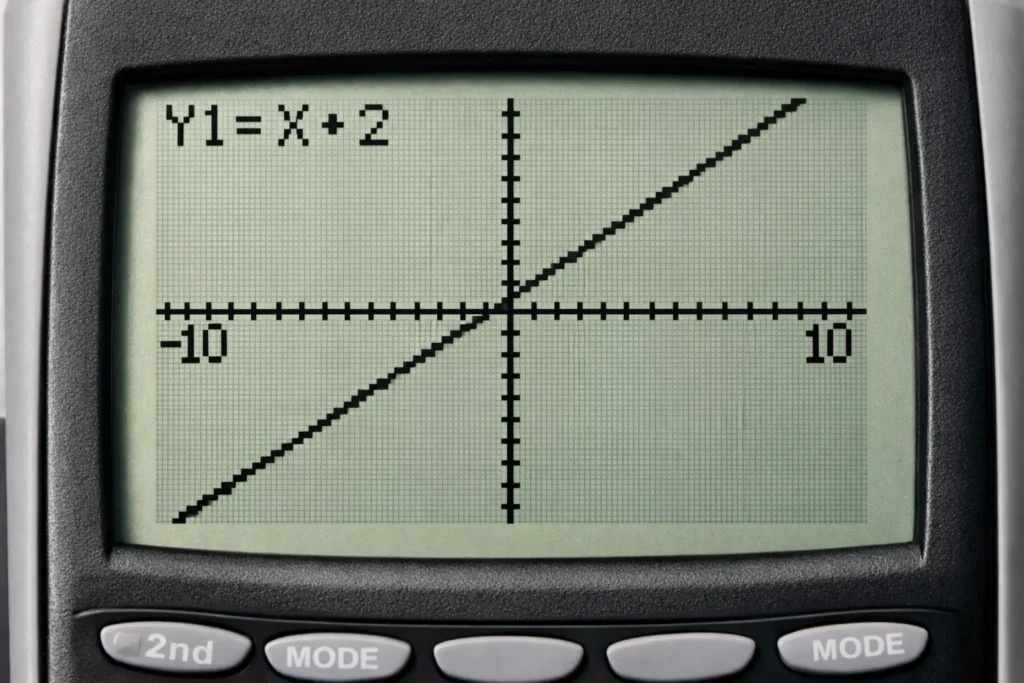
Now your screen should show Y1 = X + 2.
Step 3: Press GRAPH
The calculator will draw the graph.
If all goes well, you should see a straight line.
Step 4: Adjust the window if needed
If the graph looks weird, too zoomed in, or missing, press ZOOM and choose ZStandard. Many beginner tutorials recommend the standard window when the screen view is off.
This usually gives a normal view from about -10 to 10 on both axes.
Step 5: Use TRACE to read points
Press TRACE.
Now use the left and right arrows. The cursor moves along the graph and shows x and y values on the screen. This is useful when your teacher asks you to read points from a graph.
Step 6: Find values using TABLE
Press the table key sequence for your model to open the value table. TI beginner materials include table and graph reading as part of learning graph features.
In the table, you can see x-values and the matching y-values. This is a great way to check whether your equation was entered correctly.
A quick graphing example
Try:
y = x^2
This should give you a U-shaped graph.
Then press TRACE and move left and right. You will notice the y-values change as x changes. This helps you connect equations with graph shape.
Common TI-84 Problems and Easy Fixes
Every beginner hits a few bumps. That is normal.
Syntax Error
A syntax error usually means the expression was typed in the wrong form.
Common causes:
- missing parenthesis
- two symbols in the wrong place
- wrong minus sign
- incomplete equation
Read the line carefully. Move the cursor back and check each part.
Graph not showing
If you press GRAPH and see nothing useful, try this:
- Go to
Y=and make sure the equation is there - Clear old equations you do not need
- Press
ZOOM - Choose
ZStandard
This fixes many beginner graph problems. Both official and classroom-style tutorials point users back to graph setup and window controls when a graph display is off.
Wrong mode problem
If a trig answer seems wrong, check Degree or Radian mode first.
Dark or dim screen
Some TI guides include screen brightness adjustment as part of getting started. If the screen is too dark or too light, use the brightness control key sequence shown on your model guide.
Calculator feels stuck
Sometimes the screen is fine, but the calculator seems frozen because you are in the wrong menu or a graph screen you did not expect.
Try:
2nd+MODEto quitCLEARto back out of some screens
Quick reset basics
If things feel completely mixed up, a reset can help. TI guidebooks include reset and startup behavior in their operating instructions. Use reset carefully because it can clear stored data and settings.
A safe beginner habit is this: try quitting and clearing first before doing a full reset.
Best Tips for TI 84 Calculator Online Beginners
Start small. Do not try to learn every menu in one day.
Practice these first:
- basic math
- parentheses
2ndALPHAY=GRAPH
Check mode before tests. This one habit can save you from many wrong answers.
Clear old equations before graphing a new one. If an old graph is still active, your screen may show lines you did not expect.
Use parentheses more than you think you need. They make your intent clear to the calculator.
Use history to save time. TI’s home screen history feature is one of the easiest ways to work faster without retyping long expressions.
FAQ
Is TI-84 hard to use for beginners?
At first, yes, it can feel crowded. But once you learn the main keys and a few steps, it gets much easier.
How do I graph an equation on a TI 84 Online?
Press Y=, type the equation, then press GRAPH. If the graph looks off, use ZOOM and choose ZStandard.
What does the 2nd button do?
It opens the second function printed above many keys. It is one of the most important keys on the calculator.
Why is my TI-84 giving the wrong answer?
The most common reasons are wrong mode, wrong parentheses, or using the wrong minus sign.
How do I change from radians to degrees?
Press MODE, move to the angle setting, and choose Degree instead of Radian.
How do I clear everything on a TI-84?
You can clear the current line with CLEAR. For graphing, remove old equations from the Y= screen. Use full reset only when needed because it may erase stored values and settings.
Can I use the TI-84 for normal math too?
Yes. It works for basic math, fractions, powers, roots, and many school calculations.
What school subjects use the TI-84 most?
It is commonly used in algebra, geometry, precalculus, calculus, and some science classes.
Conclusion
Learning how to use TI 84 calculator online for beginners does not have to be stressful. You do not need every button on day one. Start with the home screen, basic math, mode settings, and one simple graph. After that, things begin to click. One key at a time. One step at a time.
The TI 84 calculator can look complicated when you first hold it, but most beginners only need a small set of tools to get started. Once you learn those, the calculator becomes a real help in class instead of something that slows you down. Official TI resources and classroom tutorials both show that the path for beginners is simple: learn the basics, understand the home screen, and then build up to graphing.