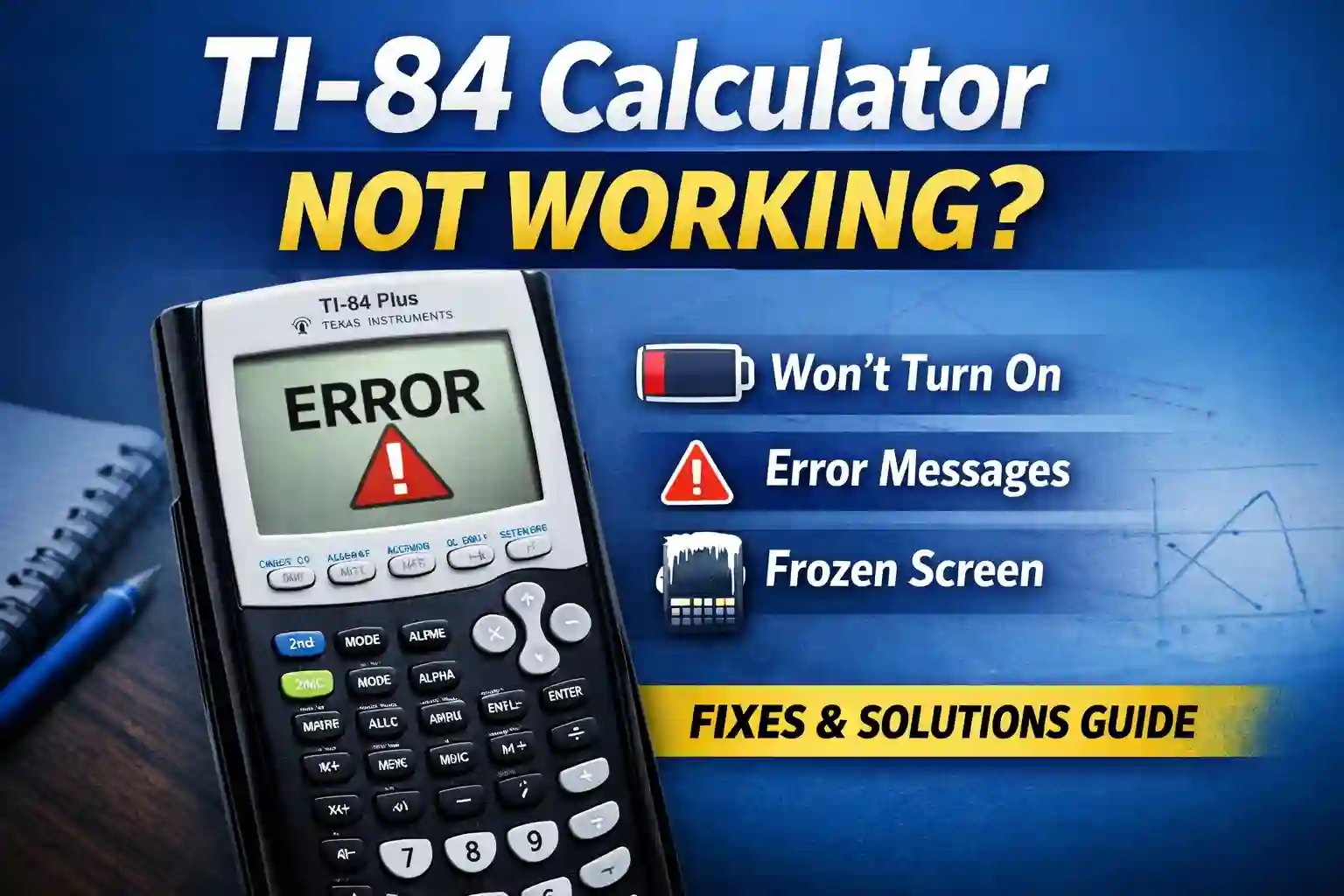
TI-84 Calculator Not Working? Fix All Common Problems (Complete Beginner Guide)
You open your TI-84 calculator to finish homework, and suddenly it stops working.
The screen freezes, the buttons stop responding, and you are not sure what went wrong.
Most of the time, these TI-84 problems are simple, and you can fix them yourself once you understand the right steps.
Introduction
Many students depend on the TI-84 calculator every day because it helps with math homework, exams, and calculations that would normally take a long time by hand. But sometimes things do not work as expected, and the calculator may freeze, show a blank screen, or refuse to turn on without warning.
If you are using an online TI-84 calculator or a physical one, these problems can feel stressful, especially when you are short on time or trying to finish important work. Many students think their calculator is broken forever when this happens, but in most cases, small issues are responsible for these problems.
If your TI-84 Calculator Not Working, this guide will walk you through simple solutions that actually work. You will learn what causes these issues and how to fix them step by step, so by the end of this guide, you will feel more confident handling almost any calculator problem.
Why Your TI-84 Calculator May Stop Working
Before fixing the problem, it helps to understand why it happens in the first place. Most calculator issues do not mean the device is damaged, because in many cases, the problem comes from small system errors that are easy to correct.
Here are some common reasons your TI-84 Calculator Not Working situation may happen:
- Low battery power
- System freeze
- Software glitch
- Screen display problem
- Memory overload
- Button failure
- Incorrect settings
Many students feel worried when their calculator suddenly stops working, because they think they pressed the wrong button or damaged something inside. But in most cases, the issue is temporary, and the calculator can start working again after a few simple fixes.
If you are using an online TI-84 calculator, the cause may be slightly different because online tools depend on your browser and internet connection. Some common online calculator problems include:
- Browser problem
- Internet connection issue
- Cache error
- Page loading failure
Understanding the real reason behind the problem makes fixing it much easier and saves a lot of time during homework or practice sessions.
Most Common TI-84 Calculator Problems
Some problems appear again and again, and many students face the same issues when their TI-84 Calculator Not Working suddenly stops responding. If your calculator is not working properly, there is a strong chance that your problem matches one of the common issues listed below.
Common TI-84 Problems List
| Problem | What Happens | Difficulty Level |
|---|---|---|
| Calculator not turning on | No screen or response | Easy Fix |
| Blank screen | Screen lights but shows nothing | Easy Fix |
| Frozen calculator | No buttons work | Medium Fix |
| Buttons not working | Some keys fail | Medium Fix |
| Screen lines or faded display | Hard to read numbers | Medium Fix |
| Memory full error | Cannot save data | Easy Fix |
This table helps you quickly identify your issue without reading every section, which saves time when you need a fast solution.
TI-84 Calculator Not Turning On
This is one of the most common problems students face when their TI-84 Calculator Not Working suddenly refuses to respond. You press the ON button expecting the screen to light up, but nothing happens, and the screen stays completely black as if the calculator is unresponsive.
There is no need to panic at this stage, because in most situations this problem happens due to small issues that have simple and easy solutions.
Possible Causes
When your TI-84 calculator does not turn on, the cause is usually linked to one of a few common issues that many students face during regular use.
Some of the most common causes include:
- Dead batteries
- Loose battery connection
- System crash
- Hardware reset needed
Even brand-new calculators can fail to turn on if the batteries are weak or not placed correctly, which is why checking battery condition should always be the first step before trying more advanced fixes.
Fix 1: Check the Batteries
The very first thing you should do when your TI-84 calculator not turning on problem appears is to check the batteries, because many students skip this simple step and spend time trying fixes that are not even needed.
Follow these steps carefully:
- Remove the battery cover from the back of the calculator.
- Take out the batteries and inspect them closely.
- Check if the batteries look old, weak, or leaking.
- Replace them with fresh batteries if needed.
- Turn the calculator on again and check the screen.
If the calculator starts working after replacing the batteries, it clearly means the problem was related to battery power, which is one of the most common causes of calculator failure.

Fix 2: Check Battery Contacts
Sometimes the batteries inside your calculator are still working, but the calculator does not turn on because the batteries are not touching the metal contacts properly. This usually happens when the contacts become dirty or loose over time.
Follow these steps carefully:
- Remove the batteries from the calculator.
- Check the metal contacts inside the battery compartment.
- Clean the contacts gently using a dry cloth if you see dust or dirt.
- Reinsert the batteries firmly so they sit in the correct position.
- Try turning the calculator on again to see if the power returns.
This simple step solves many power problems because clean and secure battery contacts allow electricity to flow properly inside the calculator.
Fix 3: Perform a Hard Reset
If your calculator still does not turn on after checking the batteries and contacts, performing a hard reset can help restore normal power because this method forces the calculator to restart from the beginning.
Follow these steps carefully:
- Remove the batteries completely from the calculator.
- Press and hold the ON button for about 10 seconds to release stored power.
- Insert the batteries back into the calculator in the correct position.
- Turn the calculator on again and check if the screen responds.
This process clears temporary system errors that may block the calculator from starting, and it often brings the device back to normal working condition.
TI-84 Screen Not Working or Blank
Sometimes the calculator turns on normally, but the screen stays blank or shows only a faint display that is difficult to read. In some cases, you may not see anything on the screen at all, even though the calculator itself is powered on.
When this TI-84 calculator screen not working problem happens, many students feel worried at first, but in most situations the issue looks more serious than it actually is, and simple adjustments can often bring the display back to normal.
Signs of a Blank Screen Problem
When your TI-84 screen not working issue begins, there are several warning signs that can help you understand what is happening before trying any fixes.
You may notice the following signs:
- The screen turns on but shows nothing at all.
- The screen looks too dark, even when the calculator is powered on.
- Numbers appear very faint and are difficult to read clearly.
- The display disappears suddenly while using the calculator.
Most of these display problems are related to contrast settings, which control how dark or light the screen appears, and adjusting them usually solves the issue quickly.
Fix 1: Adjust Screen Contrast
Many users accidentally change the contrast settings without realizing it, which makes the screen appear blank even though the calculator is still working in the background.
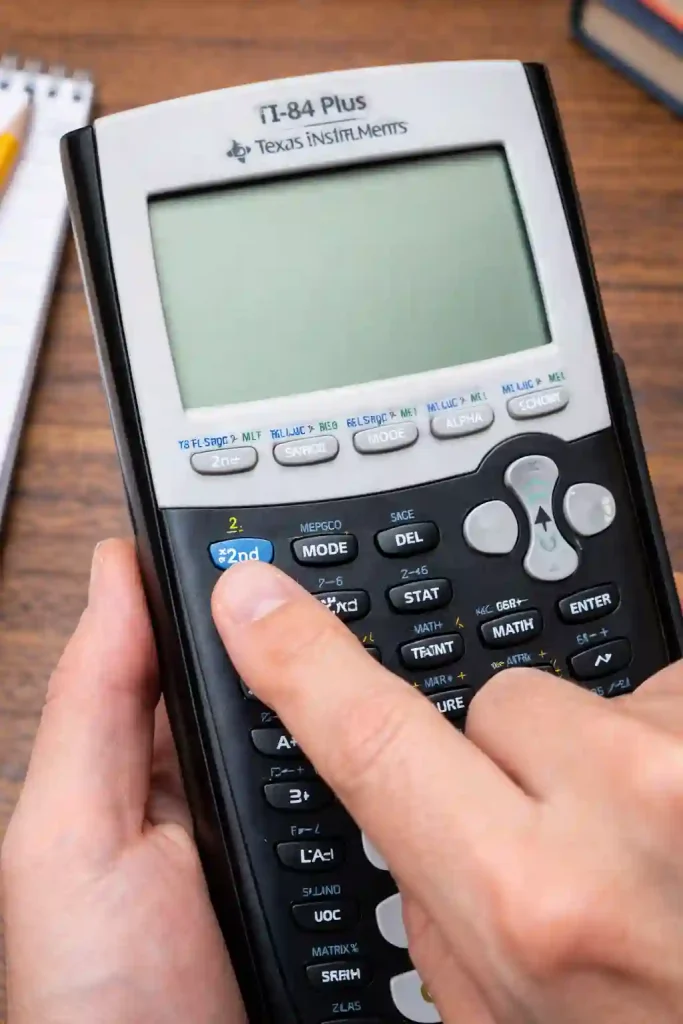
Try the following steps to adjust the screen contrast:
- Press the 2nd button on the calculator.
- Press the Up Arrow key several times to increase screen darkness.
- Watch the screen carefully to see if numbers begin to appear again.
If the display becomes visible after adjusting the contrast, it means the problem was related to contrast settings, and your calculator is working normally again.
Fix 2: Reset Display Settings
If adjusting the screen contrast does not fix the blank display problem, resetting the calculator by removing the batteries can help restore normal screen behavior because this method clears temporary display errors.
Follow these steps carefully:
- Remove the batteries from the back of the calculator.
- Wait for about 30 seconds so that stored power inside the calculator fully drains.
- Reinsert the batteries back into their correct positions.
- Turn the calculator on again and check if the screen becomes visible.
This reset refreshes the display system and often fixes screen problems that occur due to temporary glitches or incorrect settings.
Fix 3: Check Screen Damage
If the screen still does not work after trying the contrast and reset steps, it is important to inspect the calculator screen carefully because physical damage can prevent the display from working properly.
Look for the following signs of damage:
- Cracks on the screen surface
- Horizontal or vertical lines across the display
- Liquid damage caused by water or moisture
- Black spots or dark areas that do not disappear
If you notice any of these signs, the problem is likely caused by physical damage, and in most cases the calculator may need professional repair or replacement to restore normal display function.
TI-84 Calculator Frozen or Not Responding
A frozen calculator can feel very frustrating, especially when you are trying to finish homework or solve an important problem and suddenly nothing responds on the screen. You press the buttons again and again, but nothing changes, and the display remains stuck on the same page without reacting to your commands.
This TI-84 calculator frozen problem often happens during heavy calculations or when the calculator memory becomes overloaded, which means too many tasks or stored files slow down the system and cause it to stop responding temporarily.
Why TI-84 Freezes
A freeze usually happens when the calculator becomes too busy to handle the commands you give it, which means it cannot respond quickly and the screen stops updating as expected.
Common reasons that cause a calculator to freeze include:
- Large calculations that require more processing time than usual
- Too many programs running or stored inside memory
- Memory overload caused by saving too many files or lists
- Software errors that interrupt normal calculator functions
This problem is common in both physical calculators and online TI-84 calculators, especially when users perform heavy calculations or run multiple tasks at the same time.
Fix 1: Soft Reset
A soft reset helps clear minor system issues that may cause your calculator to freeze or stop responding, and it is often one of the safest ways to restart the system without causing physical damage.
Follow these steps carefully:
- Press the 2nd button on your calculator.
- Press the MEM button to open the memory menu.
- Scroll down and select the Reset option from the list.
- Choose All RAM to clear temporary data and reset the calculator.
After completing these steps, the calculator will remove temporary errors and restart its system, which often solves freezing or unresponsive screen problems.
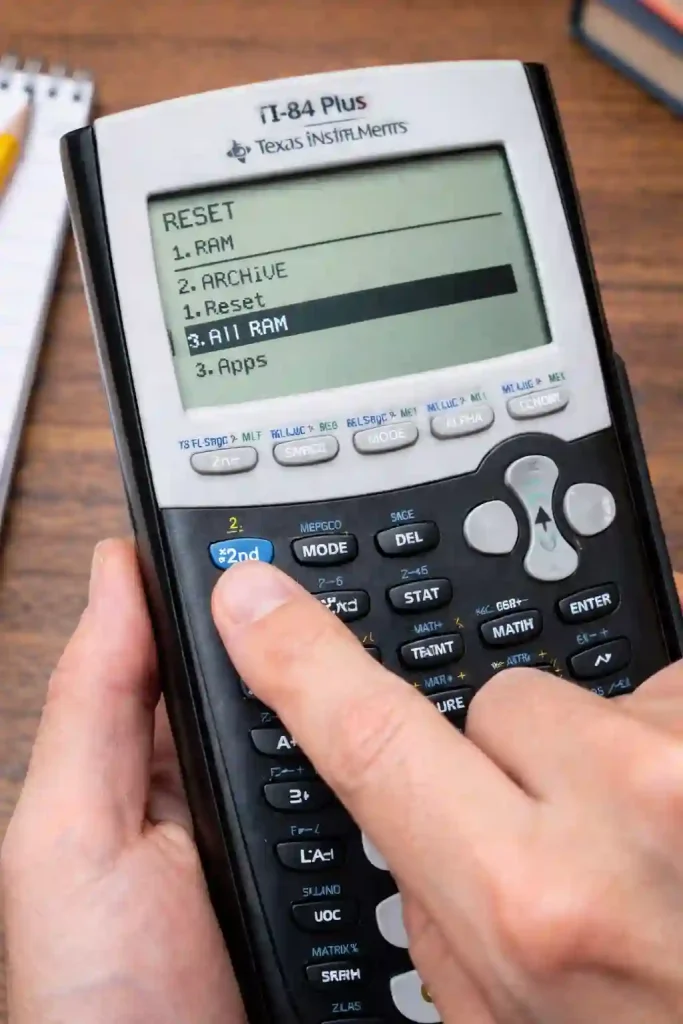
Note: Resetting All RAM may remove stored data, so make sure you save important programs before performing this step if possible.
Fix 2: Remove Batteries
If the calculator does not respond at all and pressing buttons does not produce any result, removing the batteries can help restart the internal system because this method cuts power completely and allows the calculator to reset itself.
Follow these steps carefully:
- Remove the batteries from the back of the calculator.
- Wait for about 1 minute so that all stored power inside the calculator fully drains.
- Reinsert the batteries back into their correct positions.
- Turn the calculator on again and check if the screen responds normally.
This method forces a full restart of the calculator, which often fixes freezing or unresponsive problems caused by temporary system errors.
Fix 3: Clear Memory
Memory overload happens when too many files, programs, or lists are stored inside the calculator, which can slow down performance and cause freezing or unresponsive behavior.
Follow these steps carefully to clear unused memory:
- Press the 2nd button on the calculator.
- Press the MEM button to open the memory menu.
- Choose the Clear Memory option from the list.
- Select All Lists to remove stored list data that may be taking up space.
Clearing memory removes unused stored data and frees space inside the calculator, which helps the system run faster and prevents freezing problems in the future.
TI-84 Buttons Not Working
Sometimes certain keys on your calculator suddenly stop working, and when you press a button nothing happens on the screen, even though the calculator appears to be turned on normally.
This TI-84 buttons not working problem can feel very frustrating, especially during exams or homework sessions when you need quick answers and every second matters.
Causes of Button Problems
Several common issues can cause calculator buttons to stop working properly, and understanding these causes makes it easier to fix the problem before it becomes more serious.
Common causes include:
- Dust inside buttons that blocks smooth key movement
- Sticky keys caused by dirt, oil, or spilled liquids
- Hardware wear that happens after long-term use
- Software freeze that prevents buttons from responding normally
Most button problems start as small issues, but if they are ignored for too long, they can become worse and may eventually stop multiple keys from working properly.
Fix 1: Clean the Buttons
Dust and dirt often collect around calculator keys, and over time this buildup can block smooth button movement, which leads to the TI-84 buttons not working problem that many users experience.
Follow these steps carefully:
- Turn the calculator off before cleaning to avoid accidental input.
- Use a soft, dry cloth to wipe the surface of the buttons gently.
- Clean around the edges of the keys where dust usually collects.
- Remove any visible dust or dirt that may block button movement.
Important: Never use water or liquid cleaners directly on the buttons, because moisture can enter the calculator and damage internal components.
Cleaning the buttons regularly helps maintain smooth key movement and prevents small issues from turning into serious hardware problems.
Fix 2: Restart Calculator
Sometimes calculator buttons stop responding because the internal system becomes stuck due to a software freeze, and restarting the calculator helps refresh the system and restore normal button function.
Follow these restart steps carefully:
- Remove the batteries from the calculator to completely stop the power supply.
- Wait for about 30 seconds so that the internal system fully shuts down.
- Reinsert the batteries back into the correct positions.
- Turn the calculator on again and test the buttons to see if they respond normally.
Many button problems disappear after restarting the calculator because this process refreshes the internal system and clears temporary software issues that may block button responses.
Quick Fix Table for Common Problems
This quick reference table helps you solve the most common calculator problems without reading the full guide, which saves time when you need a fast solution during homework or exam preparation.
| Problem | Quick Fix | Time Needed |
|---|---|---|
| Calculator not turning on | Replace batteries | 2 minutes |
| Blank screen | Adjust contrast | 1 minute |
| Frozen calculator | Remove batteries | 1 minute |
| Buttons not working | Clean surface | 3 minutes |
| Memory full error | Clear memory | 2 minutes |
Keeping this table bookmarked or saved can help you find solutions quickly whenever your calculator stops working unexpectedly.
Special Note for Online TI-84 Calculator Users
If you are using an online TI-84 calculator, some problems may be related to your browser instead of the calculator itself, because online tools depend on internet connection and browser performance to work smoothly.
Common online calculator issues include:
- Calculator not loading properly
- Buttons not responding when clicked
- Screen freezing during calculations
- Lag or delay while solving problems
These issues are usually caused by browser-related problems rather than calculator errors, which means fixing your browser settings can often solve the issue quickly.
Below, we will explain how to fix these common online calculator problems step by step so that you can continue your work without interruptions.
The next sections will focus on:
- Browser issues that block calculator loading
- Cache errors that store outdated files
- Internet connection problems
- Online calculator loading errors
- Advanced troubleshooting steps for smoother performance
TI-84 Calculator Memory Full Error How to Fix It Properly
Many students notice their TI-84 calculator not working properly when the memory becomes full, because the system starts slowing down and struggles to handle normal tasks. At first, the calculator may feel slow, but after some time it may freeze during calculations or fail to save new data.
This TI-84 Memory Full Error usually happens when too many programs, lists, or apps remain stored inside the calculator for a long time. As memory fills up without you noticing, the calculator begins to struggle with normal operations, which leads to slow performance and frequent freezing.
Signs That Your TI-84 Memory Is Full
Before trying to fix the problem, it is important to recognize the early warning signs that appear when memory starts filling up, because many users ignore these signals until the calculator stops working completely.
Look for the following signs that may indicate a TI-84 Memory Full Error:
- The calculator becomes slow during normal use
- Programs take longer than usual to open
- Graphs load very slowly on the screen
- Error messages appear while saving or running programs
- The calculator freezes during calculations
If you notice one or more of these signs, clearing memory should be your first step because freeing space inside the calculator helps restore speed and prevents further freezing problems.
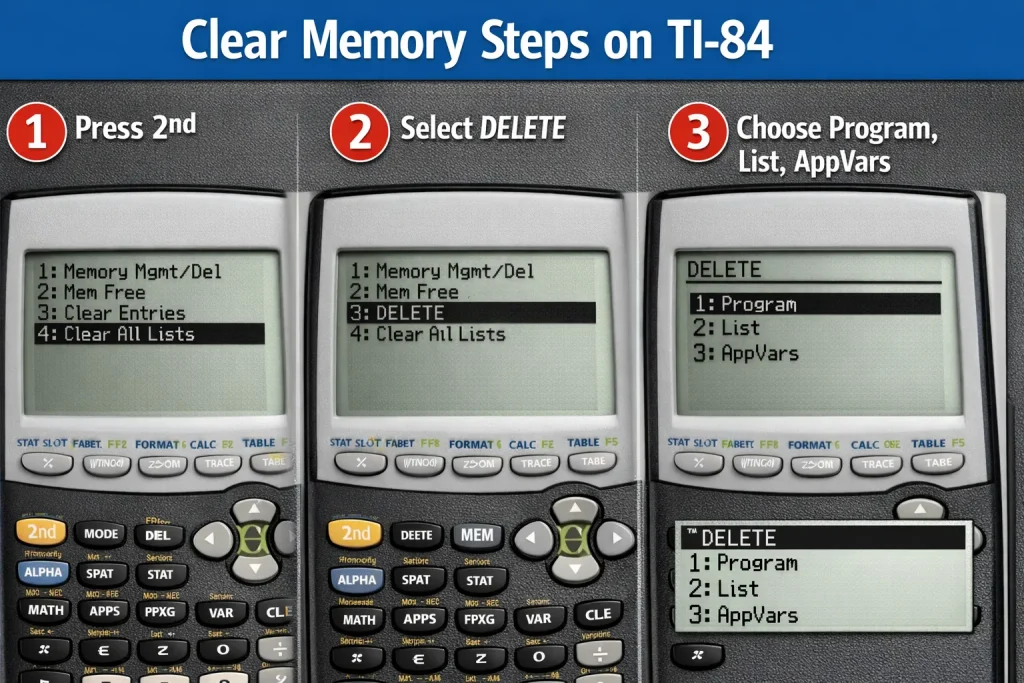
Step-by-Step Guide to Clear Memory
Clearing memory removes unused data and helps the calculator run faster again, especially when too many programs or lists are stored inside the system. This process is safe as long as you do not need the old programs or files that will be deleted.
Follow these steps carefully to clear unused memory:
- Press the 2nd button on the calculator.
- Press the MEM button to open the memory menu.
- Select the Delete option from the list.
- Choose the type of file you want to remove, such as programs or lists.
- Delete unused programs or lists that are no longer needed.
- Restart the calculator after deleting unnecessary files.
Many users notice an immediate improvement in speed after clearing memory, and they often feel surprised by how much faster the calculator responds during calculations.
Which Files Should You Delete First
Not every file stored inside the calculator needs to be removed, because some files are important for daily use while others only take up memory without providing any real benefit.
Here is a simple table to help you decide which files should be deleted and which ones should be kept.
| File Type | Delete or Keep | Reason |
|---|---|---|
| Old programs | Delete | No longer needed and only take up memory |
| Large lists | Delete | Use a large amount of memory space |
| Apps you never use | Delete | Save space and improve speed |
| System files | Keep | Required for normal calculator operation |
| Important formulas | Keep | Useful for homework and study tasks |
Making the right decision about which files to remove helps maintain smooth calculator performance and prevents memory overload problems in the future.
TI-84 Calculator Graph Not Showing: Easy Fixes
Another common complaint happens when graphs refuse to appear on the screen, even after entering the correct equation. You carefully type the function, press the GRAPH button with confidence, but nothing shows on the display, which makes the situation feel confusing and frustrating.
This TI-84 graph not showing issue often surprises users because the calculator seems to work normally in other areas, yet the graph window settings may be incorrect or not properly adjusted, which prevents the graph from appearing on the screen.
Why Graphs Do Not Show
Graph display problems usually happen because the viewing window settings are not adjusted correctly, which means the calculator is drawing the graph outside the visible screen area even though the equation itself is correct.
Common causes that lead to the TI-84 graph not showing problem include:
- Wrong window range, where the X and Y values are set too high or too low
- Graph turned off, which prevents the calculator from displaying the function
- Equation hidden, when the function is entered but not activated for graphing
- Incorrect mode settings, such as using the wrong graph mode
Even experienced users face this issue from time to time, because small setting changes can easily affect how graphs appear on the screen without giving clear warning signs.
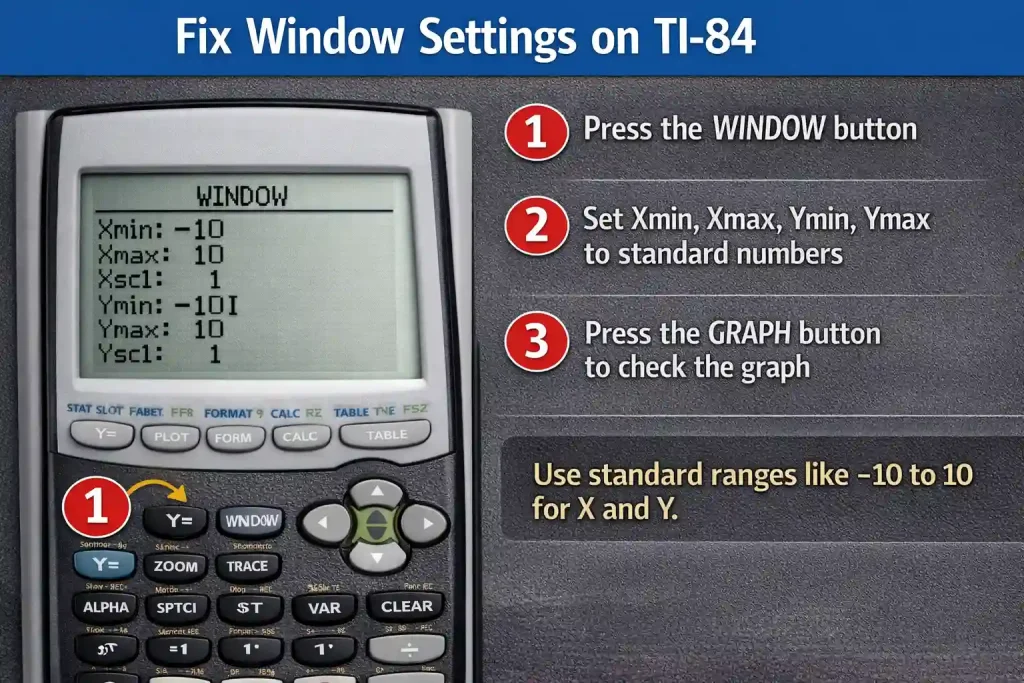
Fix Window Settings
Window settings control how graphs appear on the screen, and if the viewing range is set too high or too low, the graph may be drawn outside the visible area, which makes it look like nothing is working even when the equation is correct.
Follow these steps carefully to reset the window settings:
- Press the WINDOW button on the calculator.
- Check the values for Xmin, Xmax, Ymin, and Ymax on the screen.
- Reset the values to standard ranges if they look unusual.
- Press the GRAPH button again to see if the graph appears.
If you are unsure about the correct values, using standard window settings usually fixes the issue because default ranges allow most graphs to appear clearly on the screen.
Fix Hidden Equation Problem
Sometimes the equation is already entered in the calculator, but the graph does not appear because the equation is turned off or hidden, which usually happens when the equal sign is not activated.
Follow these steps carefully:
- Press the Y= button to open the equation list.
- Check if your equation is written on the screen.
- Make sure the equal sign (=) next to the equation is highlighted or turned on.
- If the equal sign is not active, move the cursor to it and press ENTER to activate it.
- Press the GRAPH button again to see if the graph appears.
Once the equation is activated, the calculator displays the graph normally because the function becomes visible to the graphing system.
Online TI-84 Calculator Not Working: Browser Fix Guide
Many users today depend on an online TI-84 calculator instead of carrying a physical device, especially when working on homework, assignments, or practice sessions from a laptop or mobile device. These tools are extremely helpful when a physical calculator is not available nearby.
However, users sometimes face situations where the online TI-84 calculator not working properly creates confusion and delays their work.
Some of the most common online calculator problems include:
- Online calculator not loading on the screen
- Buttons not responding when clicked
- Screen freezing during calculations
- Slow performance while solving problems
These issues usually happen because of browser-related settings, cached data, or internet problems rather than faults in the calculator itself, which means fixing the browser often solves the problem quickly.
Why Online TI-84 Calculator Stops Working
Online calculators depend on your browser to function properly, which means the browser controls how the calculator loads and runs on your screen. When the browser stores too much old data, known as cached files, it may block the calculator from loading correctly and cause the online TI-84 calculator not working problem.
Common causes that lead to online calculator issues include:
- Browser cache problems, where old stored files interfere with loading
- Outdated browser version, which may not support newer calculator features
- Weak internet connection, causing delays or incomplete loading
- Too many open tabs, which slow down browser performance
Fixing these problems usually takes only a few minutes, and many users are surprised at how quickly the calculator starts working normally again after simple browser adjustments.
Fix 1: Refresh the Page
The simplest way to fix small loading problems is refreshing the browser page, because this forces the website to reload fresh data and removes temporary loading errors.
Follow these steps carefully:
- Press the F5 key on your keyboard to refresh the page.
- Wait for the page to reload completely.
- Try using the calculator again to see if it responds normally.
Many minor loading problems disappear instantly after refreshing, especially when the issue is caused by temporary browser errors.
Fix 2: Clear Browser Cache
Browser cache stores temporary files to help websites load faster, but when too many old files collect over time, they can cause loading errors and prevent the online calculator from working correctly.
Follow these steps carefully to clear browser cache:
- Open your browser settings menu.
- Find and select the Clear browsing data option.
- Choose the option to remove cached files or temporary data.
- Restart your browser after clearing the cache.
- Open the online calculator again and check if it loads properly.
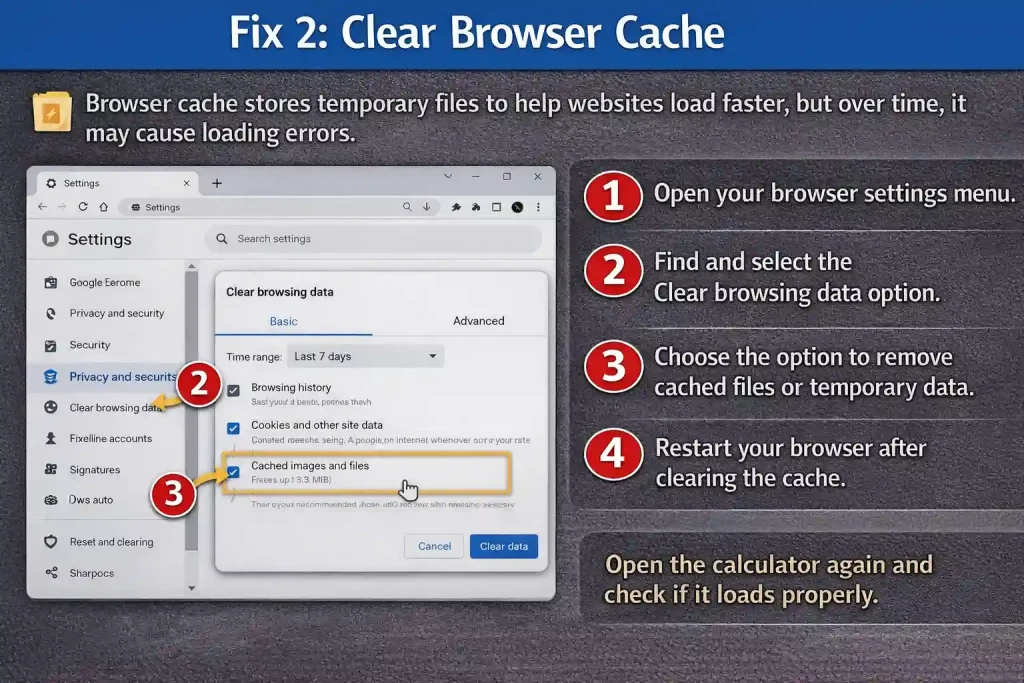
This fix solves most online calculator loading problems because removing old cache files allows the browser to load fresh data from the website.
Fix 3: Try Another Browser
If the calculator still does not load properly after refreshing the page and clearing cache, switching to another browser can help because different browsers handle websites in slightly different ways.
Good browser choices that support most online calculators include:
- Google Chrome
- Microsoft Edge
- Mozilla Firefox
Changing the browser often fixes hidden browser support problems, especially when the current browser does not load certain website features correctly.
TI-84 Calculator Charging Problem (Rechargeable Models)
Some TI-84 calculator models use rechargeable batteries instead of standard ones, and charging problems can create serious interruptions during homework or exam preparation. If the calculator refuses to charge, it may suddenly shut down when you need it the most.
Understanding common charging issues helps prevent unexpected shutdowns and keeps your calculator ready whenever you need it.
Signs of Charging Problems
Before fixing the issue, it is important to recognize the early signs that indicate a charging failure.
Look for the following warning signs:
- Calculator does not charge even when connected
- Charging light does not appear after plugging in
- Battery drains quickly after a short period
- Device turns off suddenly during normal use
These signs usually indicate that the battery is not receiving proper power from the charger.
Fix Charging Cable Issues
Many charging problems begin with damaged or worn charging cables, which prevent proper power flow to the calculator.
Check the following parts carefully:
- Cable condition, looking for bends, cracks, or exposed wires
- Port cleanliness, ensuring no dust blocks the connection
- Charger compatibility, confirming that the correct charger is being used
If the cable looks worn, loose, or bent, replacing it immediately can solve many charging problems before they become more serious.
Fix Charging Port Blockage
Dust or debris inside the charging port can block the connection between the charger and the calculator, which prevents the battery from charging properly.
Follow these steps carefully:
- Turn the calculator off before inspecting the port.
- Look inside the charging port using proper lighting.
- Remove dust gently using a soft brush or air blower.
- Connect the charger again and check if charging starts.
Important: Never use sharp objects inside the charging port, because this can damage internal connectors and create permanent charging problems.
TI-84 Calculator Error Messages: Meaning and Fixes
Sometimes the calculator shows error messages instead of normal results, which can feel confusing when you are trying to solve homework problems or complete assignments quickly. These messages often appear without warning, especially for beginners who may not understand what went wrong.
Understanding common TI-84 error messages makes troubleshooting much easier, because once you know what each message means, you can fix the problem faster and continue your calculations without wasting time.
Common TI-84 Error Messages
Here are some of the most common TI-84 error messages and what they mean, along with simple fixes that help restore normal calculator function.
| Error Message | Meaning | Quick Fix |
|---|---|---|
| ERR: SYNTAX | The equation format is incorrect | Check the equation carefully and fix missing symbols |
| ERR: MEMORY | Calculator storage is full | Clear unused programs or lists |
| ERR: DOMAIN | Input value is outside allowed range | Adjust values within valid limits |
| ERR: OVERFLOW | Number result is too large | Simplify the equation or reduce values |
Reading the error message carefully often leads directly to the correct solution, because each message gives a clear hint about what went wrong.
How to Perform Factory Reset on TI-84 Calculator
Sometimes simple fixes do not solve the issue, especially when the calculator continues to freeze or show repeated errors. In such situations, performing a factory reset may be necessary to restore the calculator to its original working condition.
A factory reset removes all stored data and restores the original settings, which means any saved programs, lists, or formulas will be deleted during this process.
Important: Always perform a factory reset only when other troubleshooting methods fail, because this method permanently removes stored data.
When Factory Reset Is Needed
A factory reset should be used only when serious problems continue to appear and normal fixes do not solve the issue.
Use a factory reset when:
- The calculator freezes repeatedly during normal use
- Software behaves strangely or responds slowly
- Error messages appear frequently without clear reason
- Other troubleshooting methods fail to solve the problem
This method works as a last option when smaller fixes do not restore normal performance.
Factory Reset Steps
Follow these steps carefully to reset the calculator to its original settings:
- Press the 2nd button on the calculator.
- Press the MEM button to open the memory menu.
- Scroll down and choose the Reset option.
- Select All Memory to remove stored data.
- Confirm the reset when the calculator asks for confirmation.
After the reset is complete, the calculator restarts with factory settings, which often removes persistent errors and restores normal performance.
Daily Care Tips
Following simple daily habits helps prevent unexpected problems and keeps your calculator working smoothly for a long time.
Follow these habits regularly:
- Replace batteries regularly to avoid sudden power loss
- Avoid dropping the calculator to protect internal components
- Keep the device clean to prevent dust from blocking buttons
- Store the calculator safely in a protective case
- Delete unused files to keep memory space available
These small daily actions protect your calculator from damage and reduce the chances of sudden failures.
Weekly Maintenance Checklis
Use this simple checklist as a reminder to perform regular maintenance tasks that help prevent major calculator problems over time.
| Task | Frequency | Benefit |
|---|---|---|
| Clean buttons | Weekly | Prevent keys from becoming stuck |
| Check memory | Weekly | Avoid memory overload issues |
| Backup data | Monthly | Protect important programs and files |
| Inspect screen | Monthly | Detect display damage early |
Following this routine keeps the calculator reliable and reduces the chances of unexpected failures during important work.
When to Use Online TI-84 Calculator as Backup
Even with proper care and regular maintenance, unexpected calculator failures can still happen at the worst possible time. That is why many students keep an online TI-84 calculator as a backup solution, so their work does not stop when the physical device suddenly fails.
Online tools provide quick and reliable access to calculator functions, which makes them extremely useful when your physical calculator stops working or becomes unavailable.
Using trusted platforms such as ti84online.com allows students to continue solving problems without interruption, especially during situations like:
- Homework sessions that require quick calculations
- Practice tests where time is limited
- Emergency calculations when the device stops working
- Travel situations when carrying a physical calculator is not possible
Many students now prefer using online calculators as backup tools because they are always available on laptops, tablets, or mobile devices whenever needed.
Frequently Asked Questions (FAQ)
Why is my TI-84 calculator not turning on even with new batteries?
This usually happens due to loose battery contacts or internal reset issues. Try removing batteries and restarting the device.
Why does my TI-84 calculator freeze during calculations?
Large calculations or memory overload often cause freezing. Clearing unused files usually fixes the problem.
Why is my online TI-84 calculator not loading?
Browser cache problems or slow internet connection may block loading. Clearing cache solves most cases.
How often should I clear memory?
Clearing memory once every few weeks keeps performance smooth and prevents freezing.
Can I fix most TI-84 problems myself?
Yes, most problems are simple and can be fixed at home without technical help.
Final Conclusion
When your TI-84 calculator not working, it may feel stressful at first. But once you understand the common causes, fixing the problem becomes much easier. Most issues come from batteries, memory overload, or simple software errors.
By following the steps in this guide, you can solve both physical TI-84 calculator problems and online TI-84 calculator issues without panic. These methods help students stay focused on learning instead of worrying about technical failures.
Keeping your calculator maintained and using reliable backup tools like an online TI-84 calculator ensures that your work continues smoothly even when problems appear.
With the right knowledge and small daily habits, your calculator can stay reliable for years of learning.