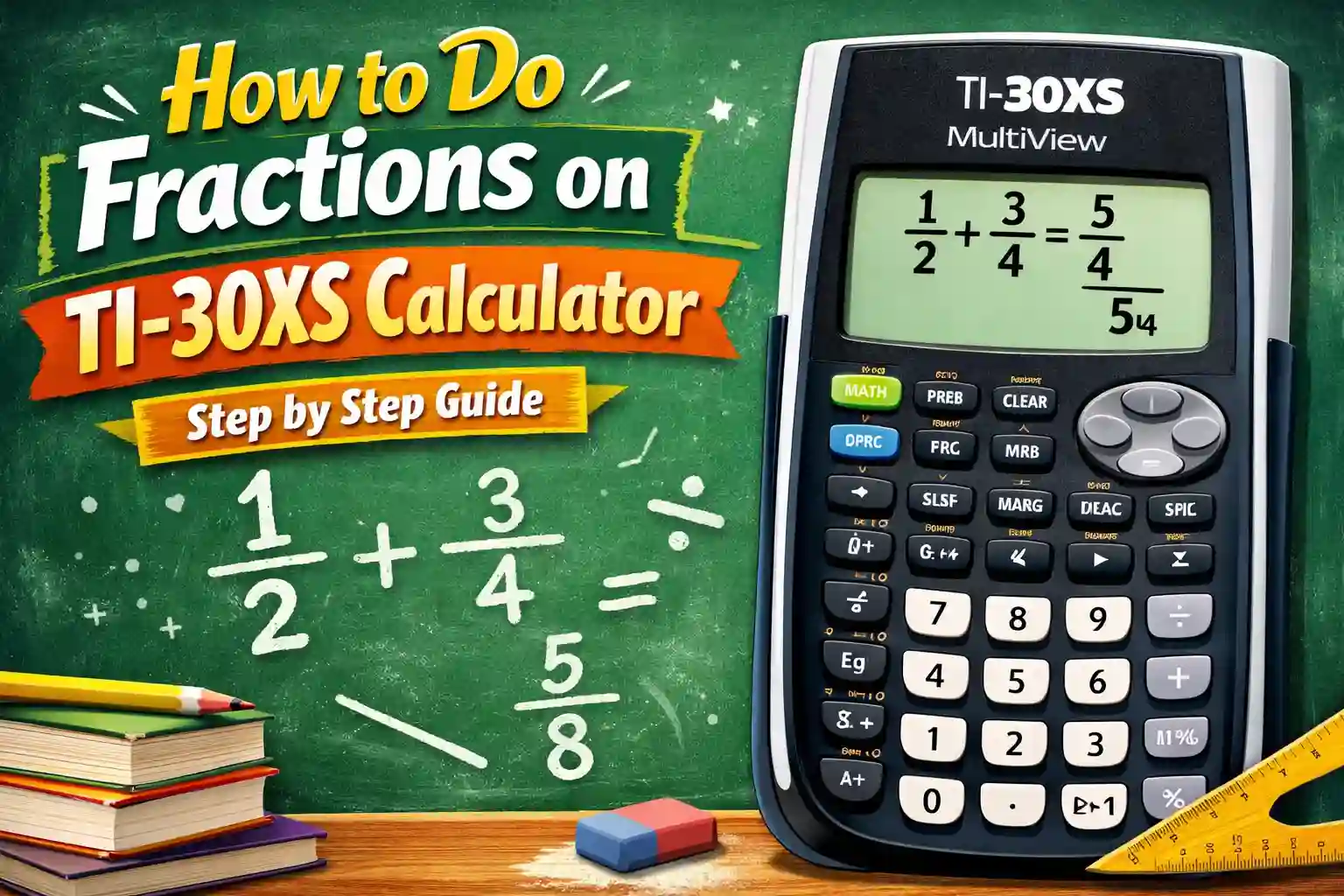
How to Do Fractions on TI-30XS Calculator (Full Beginner Guide)
Fractions confuse many students.
But once you learn how to use your calculator, everything becomes easier.
The TI-30XS calculator can handle fractions very smoothly if you know the right way.
Introduction
If you are using a TI-30XS calculator, sooner or later you will need to work with fractions. Most students struggle at first because fractions look messy on paper. Numbers sit on top of each other, and one small mistake can ruin the whole answer.
The good news is that this calculator is built to make fraction work simple. It has a special fraction feature that helps you enter numbers clearly and get clean answers. Once you learn how to use it, you will save time and avoid many common mistakes.
In this guide, I will explain how to do fractions on TI-30XS calculator in a very simple way. We will start from the basics, then slowly move toward real fraction calculations. You will also see examples that feel like real school questions.
By the end of this guide, you will feel more confident using your TI-30XS calculator online to solve fraction problems easily.
Understanding Fractions on TI-30XS Calculator
Before starting calculations, it is important to understand how fractions appear on the screen. Many students press buttons without really knowing what the calculator is doing, and that usually creates confusion later.
So before moving ahead, let’s take a moment to understand the basic ideas behind fractions.
What is a Fraction (Simple Explanation)
A fraction is a number written in two parts. One number appears on top, and the other number appears below it. These two numbers are separated by a horizontal line.
For example, fractions like 1/2, 3/4, and 5/8 are very common in school math.
These numbers show parts of a whole. For example, if you cut a pizza into 4 equal slices and take 1 slice, that becomes 1/4. This simple example helps you understand how fractions work in real life.
Your calculator shows fractions in a similar way. The top number appears above the line, while the bottom number appears below it, just like in your math textbook.
Understanding Numerator and Denominator
When working with fractions, you will often hear two important words: numerator and denominator. These words may sound difficult at first, but their meaning is actually very simple.
The numerator is the number on top of the fraction, while the denominator is the number below it.
For example, in the fraction 3/5, the number 3 is the numerator, and the number 5 is the denominator.
Your TI-30XS calculator places numbers in the correct position on its own when you use the fraction template. This means you do not have to draw fraction lines by hand, which makes solving fraction problems much easier.
Finding the Fraction Button on TI-30XS
One of the most important things to learn is where the fraction button is located on your calculator.
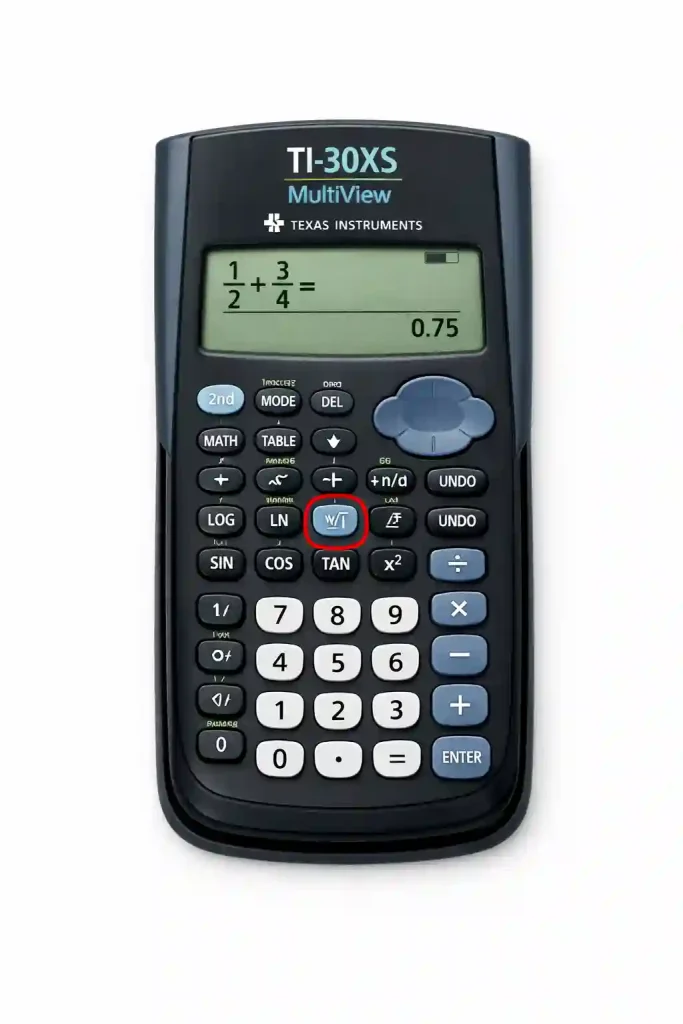
On the TI-30XS calculator, there is a special button that looks like a small fraction box. This button creates a template where you can enter the numerator and denominator easily without confusion.
When you press this button, the screen shows two small boxes. One box appears on top, and the other appears below it. These boxes are the places where you type your numbers.
Many students get confused at this point because they try to type fractions using the divide button. That method is not correct when you want fractions to appear in the correct form, so it is always better to use the fraction template button instead.
MathPrint Mode vs Classic Mode
Your calculator usually works in MathPrint mode, and this mode displays fractions exactly the way they appear in textbooks, which makes them much easier to read and understand.
In Classic mode, fractions appear in a single line instead of stacked on top of each other. This makes them harder to read, especially when working with larger fractions. Because of this, most students prefer MathPrint mode since it looks cleaner and easier to understand.
If your fractions ever look strange or difficult to read on the screen, the first thing you should do is check your calculator mode.
MathPrint Mode vs Classic Mode Quick Comparison
| Feature | MathPrint Mode | Classic Mode |
|---|---|---|
| How fractions look | Fractions appear stacked like in textbooks | Fractions appear in a single line |
| Reading clarity | Easy to read and understand | Harder to read, especially long fractions |
| Student preference | Most students prefer this mode | Less preferred by beginners |
| Best use | Good for school math and fraction problems | Useful only when simple line format is needed |
How to Enter Simple Fractions on TI-30XS Calculator
Now we move to the first important task, which is entering a simple fraction on the calculator. This is usually the first thing students learn when they start working with fractions on the TI-30XS calculator.
At first, it may feel slightly confusing, especially if you have never used the fraction template before. But once you understand how to enter simple fractions correctly, the rest of the fraction work becomes much easier and faster.
Entering a Simple Fraction (Example Based Learning)
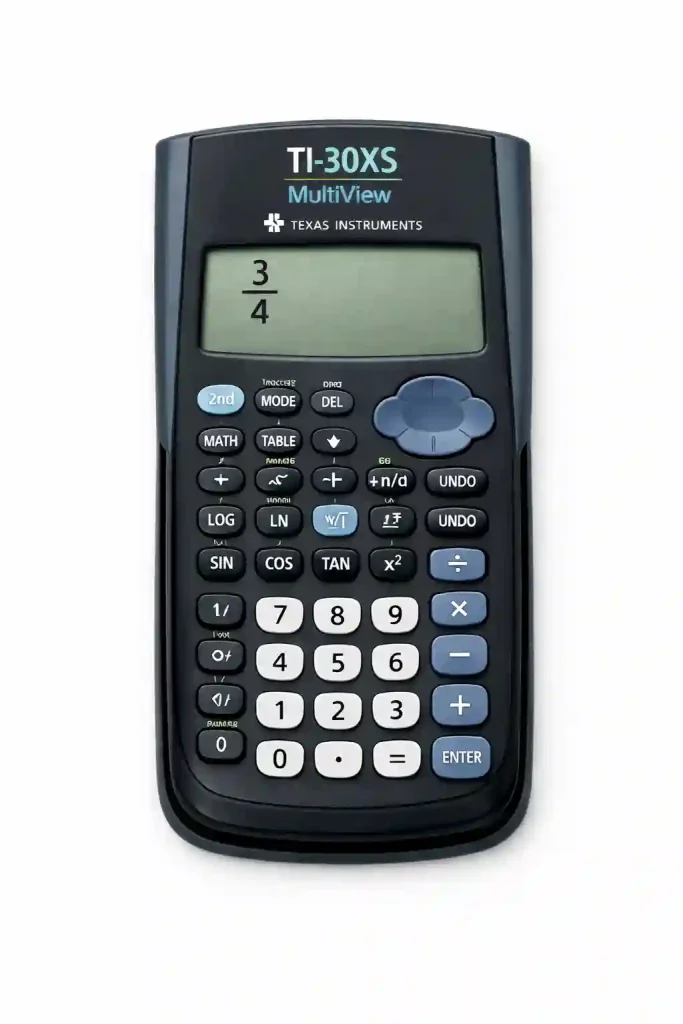
Let’s say you want to enter the fraction 3/4 into your calculator.
Start by pressing the fraction template button. The calculator will show two small boxes, one above the other, where you can enter the numbers.
Now type 3 in the top box. This number is the numerator. After that, press the down arrow key to move to the bottom box.
Next, type 4 in the bottom box. This number is the denominator.
Once you finish typing, the calculator will display the fraction clearly as 3/4 on the screen.
At first, this process may feel a little slow, especially if you are new to using fraction templates. But after practicing a few times, you will remember the steps easily, and entering fractions will start to feel natural.
Another Simple Fraction Example
Now let’s try another example so you can feel more comfortable with the same method. Imagine your teacher asks you to enter the fraction 5/8 into the calculator.
Start by pressing the fraction template button again. When the two boxes appear on the screen, type 5 in the top box and then move to the bottom box to type 8.
After entering both numbers, the screen will display the fraction clearly as 5/8, just like it appears in your math book.
This method stays the same for all simple fractions, so once you practice a few examples like this, entering fractions will start to feel easy and familiar.
Why Using the Fraction Template Matters
Some students try to type fractions using the divide symbol instead of the fraction template. When this happens, the calculator changes the fraction into a decimal number, which may not be what your teacher wants.
For example, if you type 3 ÷ 4, the calculator shows 0.75 instead of displaying the fraction 3/4.
However, when you use the fraction template button, the calculator keeps the answer in fraction form, which makes it easier to read and use in math problems.
This becomes very helpful during homework or exams, especially when your teacher asks you to give answers in fraction form instead of decimals.
How to Enter Mixed Fractions on TI-30XS
Mixed fractions are very common in school math, and you will see them often in homework and exams. A mixed fraction includes a whole number together with a fraction.
For example, mixed fractions like 2 1/3 and 4 5/6 are commonly used in math problems.
At first, these fractions may look a little confusing because they contain more than one number. However, your TI-30XS calculator handles mixed fractions easily, so once you understand the method, entering them becomes simple.
Understanding Mixed Fractions
A mixed fraction has two parts, which include a whole number and a fraction written together. This means you see one full number along with a smaller fraction next to it.
For example, in the mixed fraction 2 1/3, the number 2 is the whole number, 1 is the numerator, and 3 is the denominator.
This simply means two full parts plus one third of another part. In real life, this can be understood as having two full items and one extra piece of another item.
Entering a Mixed Fraction on TI-30XS
Let’s enter the mixed fraction 2 1/3 so you can understand how this process works.
Start by typing the whole number 2 on the calculator. After that, press the fraction template button, and the calculator will create a fraction box next to the whole number.
Now type 1 in the top box, then move down and type 3 in the bottom box. Once both numbers are entered, the calculator will show the mixed fraction clearly as 2 1/3 on the screen.
This same method works for all mixed numbers, so after practicing a few examples, entering mixed fractions will start to feel simple and comfortable.
Mixed Fraction Practice Example
Let’s try another example by entering the mixed fraction 4 5/6 into the calculator.
Start by typing the whole number 4, and then press the fraction template button to create the fraction box next to it. When the two boxes appear, type 5 in the top box and 6 in the bottom box.
After entering these numbers, the calculator will show the mixed fraction clearly as 4 5/6 on the screen.
If you practice examples like this a few times, you will quickly notice that entering mixed fractions becomes easier and more comfortable.
How to Add Fractions on TI-30XS Calculator
Now we move to actual fraction problems, where you start working with numbers instead of just entering them. Adding fractions is one of the most common tasks students perform in school math, especially during homework and exams.
Many students find fraction addition difficult when doing it by hand because it often requires finding common denominators. However, when you use the TI-30XS calculator, the process becomes much simpler and faster, and you can focus more on understanding the problem instead of worrying about long calculations.
Adding Simple Fractions Example
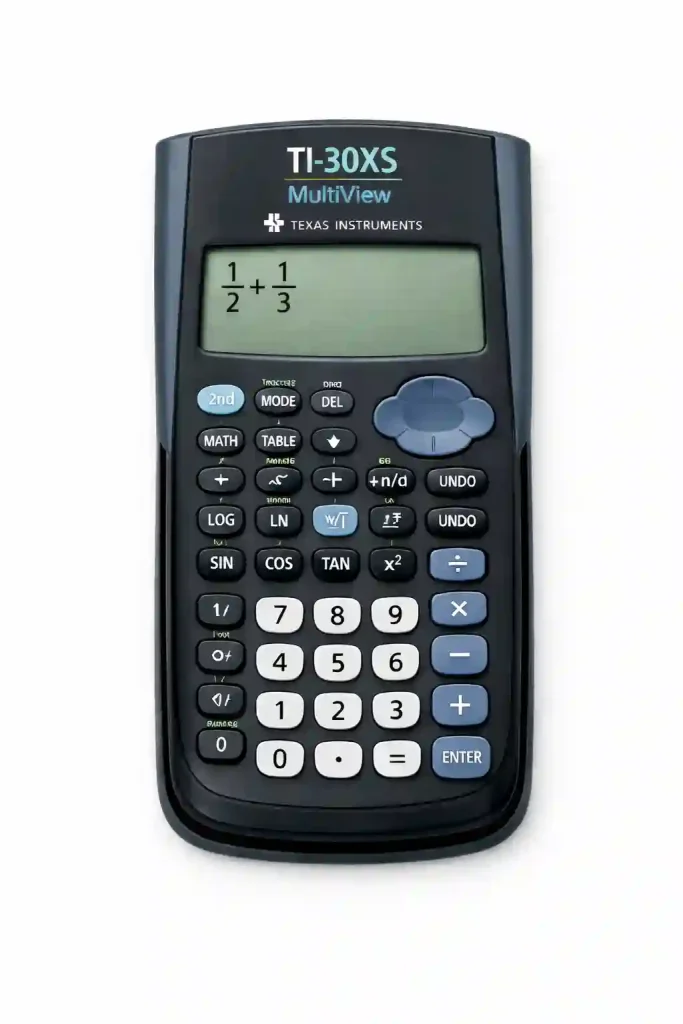
Let’s solve the fraction problem 1/2 + 1/3 to understand how addition works on the calculator.
Start by entering the first fraction 1/2 using the fraction template, then press the plus button to add the next fraction. After that, enter the second fraction 1/3 using the same method as before.
Once both fractions appear on the screen, press the equals button, and the calculator will show the correct result on its own. It will also simplify the fraction when possible, which helps save time and reduces small mistakes during calculations.
Real School Example Very Useful
Imagine your homework asks you to solve the fraction problem 3/4 + 2/5, which is a common type of question in school math.
Start by entering the first fraction 3/4, then press the plus button to add the next fraction. After that, enter 2/5 using the same fraction template method.
Once both fractions appear on the screen, press the equals button, and the calculator will display the final fraction clearly.
If you were solving this problem by hand, you would first need to find a common denominator, which usually takes extra time and effort. However, the calculator handles that step for you in just a few seconds, making the process faster and easier.
How to Subtract Fractions on TI-30XS
Subtracting fractions works almost the same way as adding fractions, so if you already understand addition, this part will feel familiar. The main difference is that you press the minus button instead of the plus button.
Many students feel nervous when subtracting fractions because it can seem confusing when done by hand. However, once you understand the basic pattern and practice a few examples on the TI-30XS calculator, subtracting fractions becomes much easier and less stressful.
Subtracting Fraction Example
Let’s solve the fraction problem 5/6 − 1/3 to understand how subtraction works on the calculator.
Start by entering the first fraction 5/6 using the fraction template, then press the minus button to subtract the next fraction. After that, enter 1/3 using the same method as before.
Once both fractions appear on the screen, press the equals button, and the calculator will display the final simplified fraction clearly.
This makes subtraction much easier compared to solving fractions by hand, where you would normally need to find a common denominator first.
Multiplying Mixed Fractions on TI-30XS Calculator
Multiplying mixed fractions may look difficult at first, but once you understand the process, it becomes much easier to handle. Your TI-30XS calculator helps you solve these problems quickly without needing long manual steps.
Let’s try an example to understand how this works. Suppose you want to multiply the mixed fractions 1 1/2 × 2 1/3.
Start by typing the whole number 1, then enter the fraction 1/2 using the fraction template. After that, press the multiply button to continue the calculation.
Next, type the whole number 2, and then enter the fraction 1/3 using the same fraction template method. Once both mixed fractions appear correctly on the screen, press the equals button to complete the calculation.
The calculator will handle the fraction conversion on its own and display the correct result. This makes multiplication much easier than solving mixed fractions by hand.
With regular practice, multiplying mixed fractions starts to feel less confusing. If you use your calculator daily and solve a few problems each day, your speed will improve, and your confidence will grow over time.
Even short practice sessions help a lot. Try solving two or three mixed fraction problems every day, and soon you will notice that fraction calculations feel more natural and easier to complete.
Why Practice Matters
Fractions become easier only with regular practice, especially when you use your calculator again and again. If you practice daily, even for a short time, your speed and accuracy will slowly improve.
Even small practice sessions can make a big difference. Try solving two or three fraction problems every day, and over time, you will notice that your confidence grows and fraction work starts to feel much easier.
How to Divide Fractions on TI-30XS Calculator
Division of fractions is another area where many students feel confused, especially when solving problems by hand. On paper, you usually need to flip one fraction and then multiply, and that step alone can make the process feel difficult for beginners.
However, the TI-30XS calculator removes this confusion by handling the correct method on its own. Let’s understand this by solving the fraction problem 3/4 ÷ 2/5, which is a common example in school math.
Start by entering the first fraction 3/4 using the fraction template, then press the divide button to continue the calculation. After that, enter the second fraction 2/5 using the same method as before.
Once both fractions appear on the screen, press the equals button, and the calculator will handle the flipping and multiplication steps in the background while showing the final fraction clearly on the screen.
This makes fraction division feel much easier compared to solving it manually, where several extra steps are usually required.
How to Convert Fraction to Decimal on TI-30XS
Sometimes teachers ask for answers in decimal form instead of fractions, and this is when changing fractions into decimals becomes very useful during math work.
The TI-30XS calculator includes a special conversion feature that changes fractions into decimals in seconds, which makes calculations faster and easier for students.
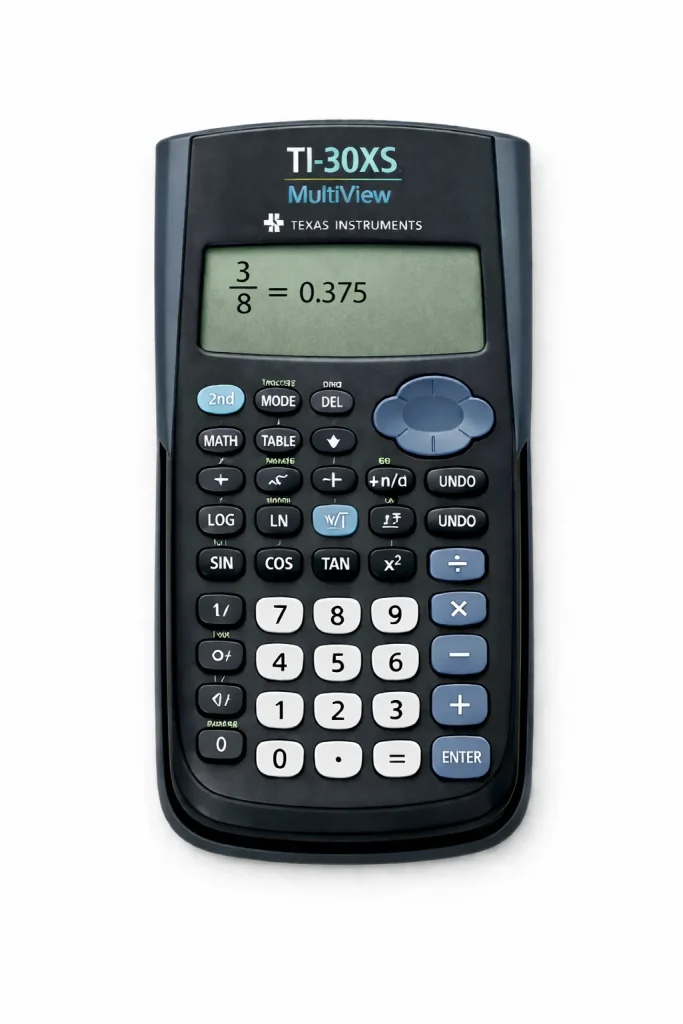
To understand this better, imagine you entered the fraction 3/8 and your teacher asks for the decimal value instead.
After entering 3/8, press the conversion button that changes the fraction into decimal form, and the calculator will display the decimal result clearly on the screen.
This feature is especially helpful when working with measurements, percentages, or exam questions, where decimal answers are often required and saving time becomes important.
How to Convert Decimal to Fraction on TI-30XS
Now let’s look at the opposite situation, where you start with a decimal number and need to change it into a fraction. This happens often in algebra and other math problems where answers must be written in fraction form.
For example, suppose you have the decimal 0.75 and need to convert it into a fraction.
Type 0.75 into the calculator normally, then press the conversion key to change the decimal into fraction form. Once you do this, the calculator will display the fraction 3/4 clearly on the screen.
This feature saves you from doing long calculations by hand and also makes it easier to check your answers quickly during homework or exams.
How to Simplify Fractions on TI-30XS
Simplifying fractions is an important skill in math because teachers usually ask students to write answers in the simplest form.
Doing this by hand can take extra time since you need to find common factors before reducing the fraction. However, the TI-30XS calculator handles this step on its own, which makes the process much easier for beginners.
For example, suppose you solve a fraction problem and get 6/8 as the answer. When the calculator shows this result, it will simplify it on its own to 3/4, without requiring extra work from you.
This means you do not need to divide the numerator and denominator by hand, which saves time and reduces the chance of small mistakes.
Because of this feature, the TI-30XS calculator becomes very helpful for students, especially when working on homework or solving exam questions where speed matters.
Common Fraction Mistakes Students Make
Even when using a calculator, students sometimes make small mistakes while working with fractions. These mistakes often happen because of rushing or pressing the wrong buttons without checking the screen carefully.
Knowing about these common mistakes makes it easier to avoid them and helps you work more confidently during homework or exams.
One common mistake occurs when students use the divide button instead of the fraction template. When this happens, the calculator changes the fraction into a decimal instead of keeping it in fraction form.
Another mistake occurs when students forget to move to the denominator box. They may type both numbers in the top box, which creates incorrect numbers and leads to wrong answers.
Sometimes students also forget to press the equals button after entering expressions, which leaves the calculation unfinished and causes confusion.
These mistakes are simple, but they can create problems if not corrected early. The best way to avoid them is to work slowly, check each step, and practice regularly until the process feels natural.
Tips to Use Fractions Faster on TI-30XS
Once you learn the basics, a few small habits can help you work faster and more accurately while using fractions on your calculator.
One helpful tip is to always check your screen before pressing the equals button. Make sure the fraction appears correctly in both the top and bottom boxes so that your answer stays accurate.
Another useful habit is practicing common fraction operations every day. Even solving two small fraction problems daily can slowly build strong confidence and improve your speed.
Students also benefit from reviewing earlier lessons before moving to new topics because this helps you remember important steps and reduces confusion later.
If you also use a graphing calculator, it can be helpful to compare fraction work across different tools. For example, you can visit your TI-84 calculator or explore related fraction guides on your site to continue learning and strengthen your overall math skills.
These links help readers move easily between lessons and continue learning step by step without confusion.
Practice Examples for Students
Practice is one of the strongest ways to improve fraction skills because reading alone is not enough, and solving real problems helps you understand how the calculator works.
Try solving the following examples on your calculator so you can test what you have learned so far.
Start with 1/3 + 2/5 and enter each fraction carefully before pressing the equals button to see the result.
Next, try 7/8 − 3/4 and watch how the calculator simplifies the answer on its own.
After that, test 2/3 × 5/6 to see how multiplication works smoothly when using the fraction template.
Finally, attempt 9/10 ÷ 3/5 and watch how the calculator handles division in the background without needing extra steps.
These examples are similar to real classroom questions, and practicing them regularly helps you become more comfortable with fraction functions and improves your overall confidence.
When to Use TI-30XS Instead of TI-84 Calculator
Many students feel confused when choosing between different calculators because they often think every calculator works the same way. In reality, each calculator is designed for a different type of math work.
The TI-30XS calculator is best for everyday school math. It works very well for fractions, decimals, percentages, and basic algebra problems. Students often use it during middle school because it is simple to use and gives fast answers without too many extra steps.
On the other hand, the TI-84 graphing calculator is designed for more advanced math work. It supports graphs, tables, and complex equations that are usually taught in higher-level classes like Algebra 2 and trigonometry.
If your main goal is solving fraction problems, the TI-30XS Multiview is usually the better choice because it is designed to make fraction work easier and faster for beginners.
However, if your lessons include graphs or visual math, the TI-84 becomes more useful. Many students switch to this calculator when their math level increases and new topics require graphing features.
If you want to explore advanced calculator tools, you can visit our TI-84 Calculator Online to learn how graphing calculators handle larger and more complex math problems.
Frequently Asked Questions (FAQs)
How do I enter fractions on TI-30XS calculator?
Use the fraction template button. Enter the numerator in the top box and the denominator in the bottom box. This keeps the fraction properly formatted.
Can TI-30XS simplify fractions automatically?
Yes, the calculator simplifies fractions automatically whenever possible. This saves time and prevents manual errors.
How do I change fraction to decimal on TI-30XS?
Enter the fraction first. Then press the conversion key that switches fraction results into decimal form.
Can I enter mixed fractions on TI-30XS?
Yes, you can type the whole number first and then add the fraction using the fraction template.
Why does my calculator show decimal instead of fraction?
This usually happens when the divide button is used instead of the fraction template. Always use the fraction template for fraction format.
Can TI-30XS multiply fractions?
Yes, multiplication works smoothly using the multiply key between fractions.
How do I divide fractions on TI-30XS?
Enter the first fraction, press divide, then enter the second fraction. The calculator handles the rest.
Does TI-30XS support improper fractions?
Yes, improper fractions work the same way as normal fractions.
How do I convert decimal into fraction?
Enter the decimal number and use the conversion key to change it into fraction form.
Is TI-30XS good for school math?
Yes, it is widely used for school-level math because it supports fractions, decimals, and algebra operations.
Conclusion
Learning how to do fractions on a TI-30XS calculator may feel difficult at the beginning, but once you understand the basic pattern, the process becomes much easier. This calculator is designed to help students solve fraction problems faster while reducing small mistakes.
The most important step is learning how to enter fractions correctly. After that, addition, subtraction, multiplication, and division begin to feel more natural. With regular practice, even larger fraction problems become easier to handle.
If you continue practicing daily and explore more calculator guides available on this website, your confidence will grow steadily. Over time, fractions will stop feeling confusing and will begin to feel simple and comfortable to solve.